
Account & getting started
Set a new password from the link you received
Choose a new password from the recovery link received by email.
- Audience
- Visitor
- Screen
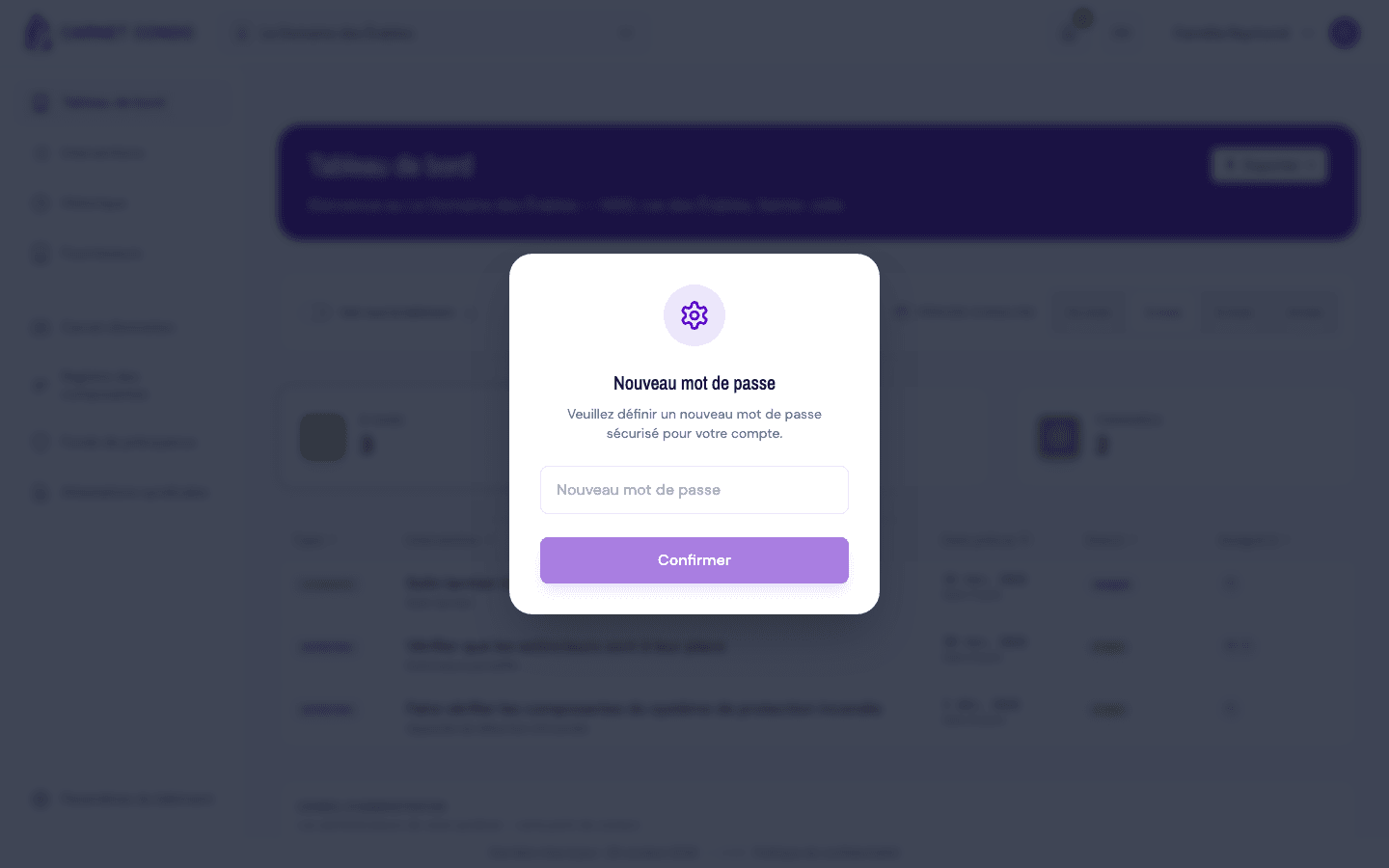
- "New password" window
- Verified version
- App 1.0.0
Goal
Choose a new password after requesting a reset link.
Audience
Visitor who has just clicked a recovery link received by email.
Prerequisites
- Having received a recovery email (see Reset a forgotten password) and clicked its link.
Steps
-
Click the link received by email. The site opens and a "New password" window appears over the application.
-
Enter your new password in the window's single field.
-
Click Confirm. (The button stays disabled while the field is empty.)
-
On success, the message "Your password was updated successfully." appears; the window closes and you continue in the application, already signed in.
The window only opens via the link
This window appears only when you arrive through a real recovery link. Visiting the recovery address directly without a valid link shows the usual sign-in page.
Tips and common errors
- Expired or already-used link: the window doesn't open; you stay on the sign-in page. Request a new link from Forgot password.
- Check what you type: the window has a single field, with no confirmation. Use your password manager or type carefully.
- Password too short: it must contain at least 6 characters.
- Update failure: a browser error message appears; try again.
- The window is blocking: confirm the new password before you can use the rest of the application.