
Account & getting started
Edit your name and phone number
Update your full name and phone number from the My account window.
- Audience
- Everyone
- Screen
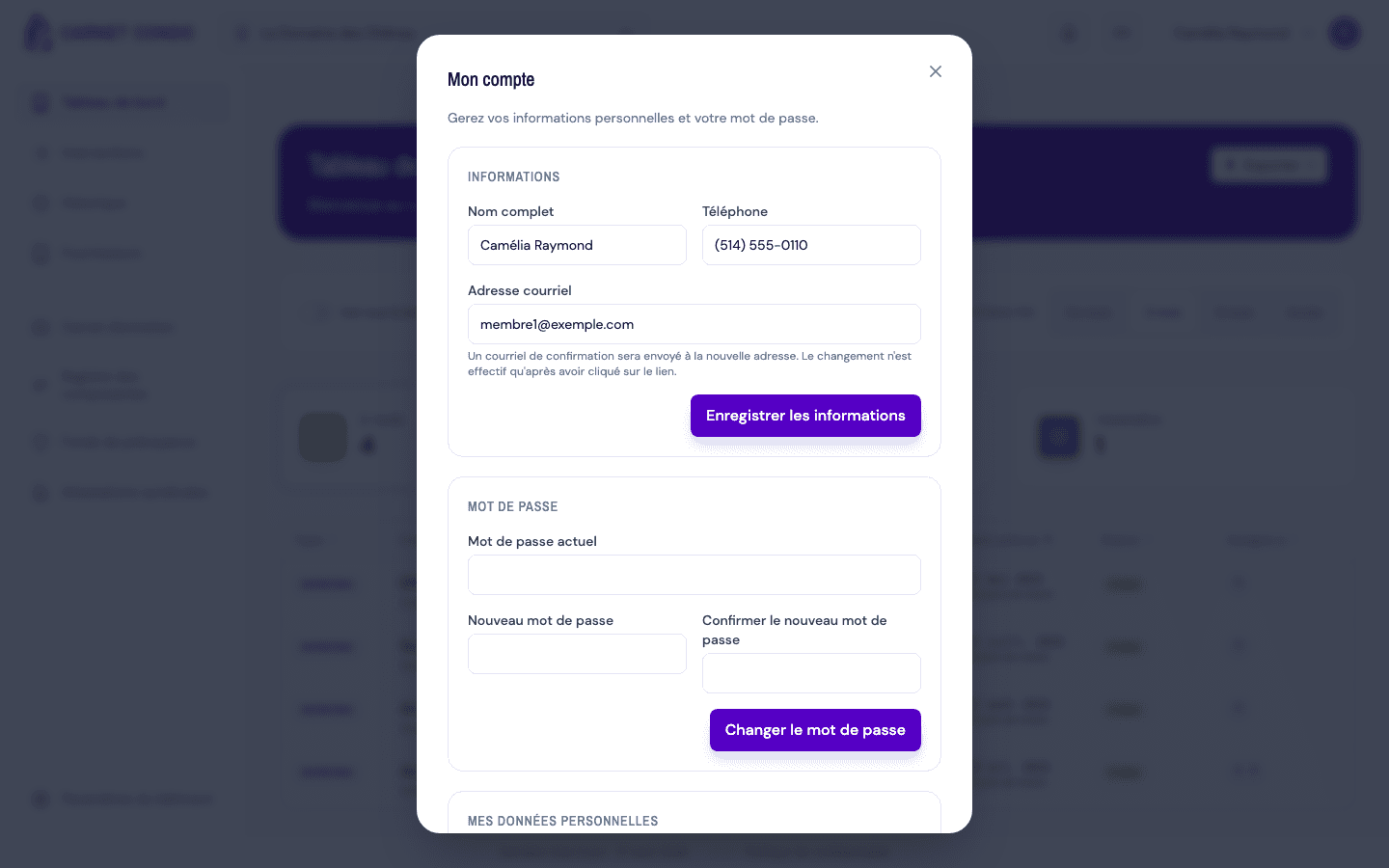
- "My account" window, Information section
- Verified version
- App 1.0.0
Goal
Update your full name and your phone number.
Audience
All signed-in users.
Prerequisites
- Being signed in.
Steps
- Open the user menu (top right), then click My account. The "My account" window opens and loads your profile.
- In the Information section, edit Full name and/or Phone.
- Click Save information.
- A confirmation message "Information updated." appears.
Tips and common errors
- Empty name: full name is required; a message appears under the field.
- Phone optional: left blank, it's simply saved as not provided.
- Closing without saving: if you close the window with unsaved changes, an "Unsaved changes" dialog asks you to save or discard them.
- Save failure: an error message invites you to try again.
The window opens from the menu
The "My account" window opens via the My account button in the user menu. It has four sections: Information, Password, My personal data and Delete my account. The building subscription is not there: it is in the Building settings.