Use the Discussion of a maintenance task
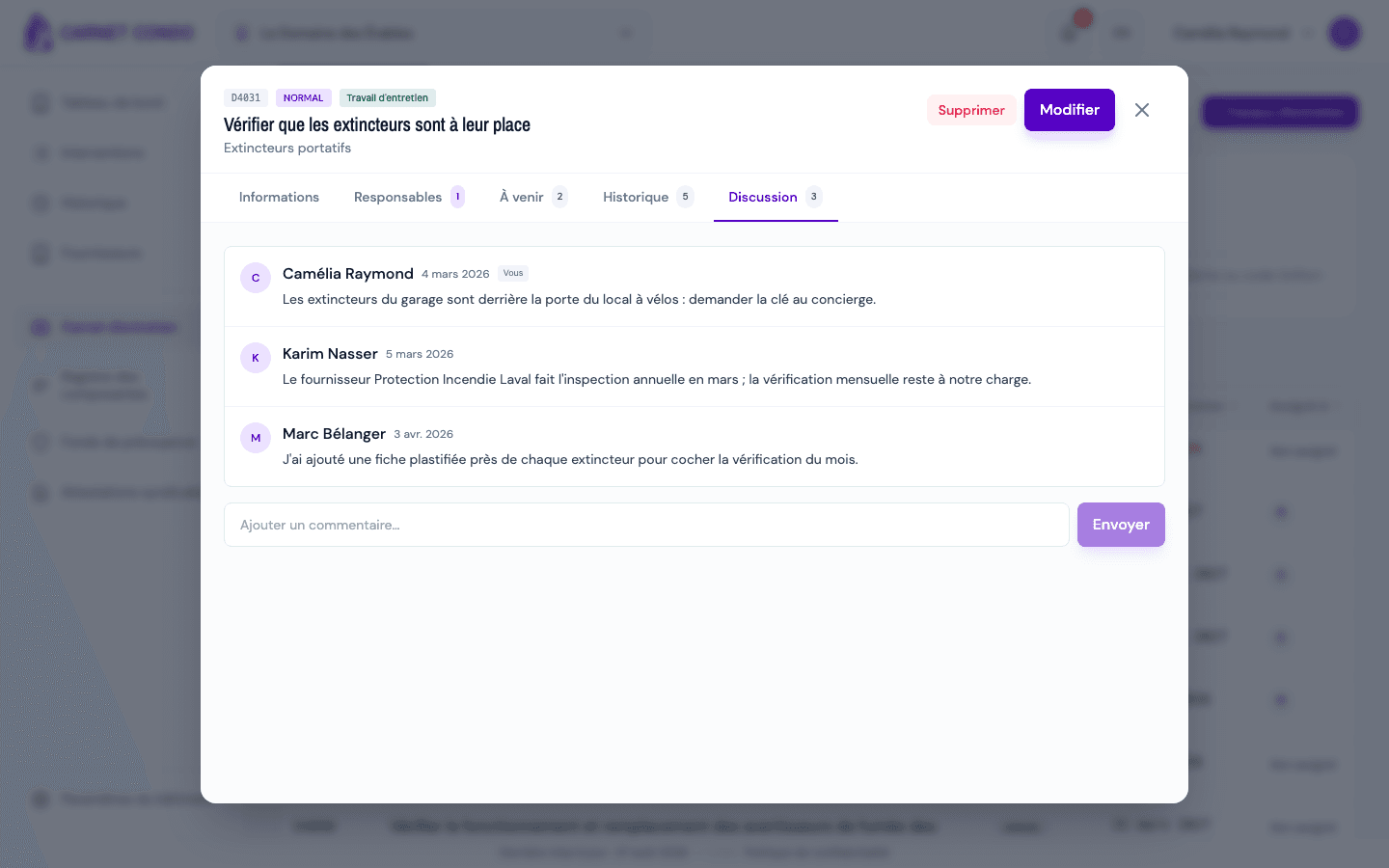
Write, edit and delete comments in the Discussion tab of a maintenance task's record; the default assignees are notified.
- Audience
- Administrator
- Screen
- Task record › Discussion tab
- Verified version
- App 1.0.0
Goal
Keep information that applies to all of a task's interventions attached to the task itself: supplier instructions, room access, parts to plan, board decisions.
For a remark that concerns one intervention only, use the intervention's Discussion instead.
Audience
Building administrator (only administrators can access the Maintenance logbook).
Prerequisites
- The task exists in the logbook.
Steps
-
Open Maintenance logbook › Maintenance work, click the task, then the "Discussion" tab (the number shows how many comments there are).
-
Type in the "Add a comment…" field, then click "Send" (or press Enter).
-
To edit a comment, hover over it and click the "Edit" icon: the text becomes editable in place; confirm with ✓ or cancel with ✕.
-
To delete a comment, click the "Delete" icon and confirm "Confirm comment deletion?".
Who is notified?
Each new comment sends a notification (bell in the header) to the task's default assignees, except the comment's author.
Tips and common errors
- Who can edit or delete: the comment's author, or an administrator.
- Markers: your own messages show "You"; an author whose account was deleted appears as "Anonymous".
- No messages: the tab shows "No comments".
See also
Track a task's interventions (Upcoming and History)
In a maintenance task's record, view scheduled interventions (Upcoming tab) and finished ones (History tab), spot overdue items and open an intervention.
View the component register (condition, end of life, to watch)
See every building component with its planned end of life, its condition and what needs watching.