View the parent ↔ follow-ups link
Move between a non-compliance and the follow-ups created from its anomaly, in both directions ("Follow-ups created" on the parent, "Follow-up of" on the follow-up).
- Audience
- All members
- Screen
- Intervention record, Information tab
- Verified version
- App 1.0.0
Goal
Find, in both directions, the link between a non-compliance (the parent) and the follow-ups created to fix it. Useful to know how the repair is going.
Audience
All members (read only).
Prerequisites
- At least one follow-up was created from a non-compliance (see Create a follow-up).
Steps
-
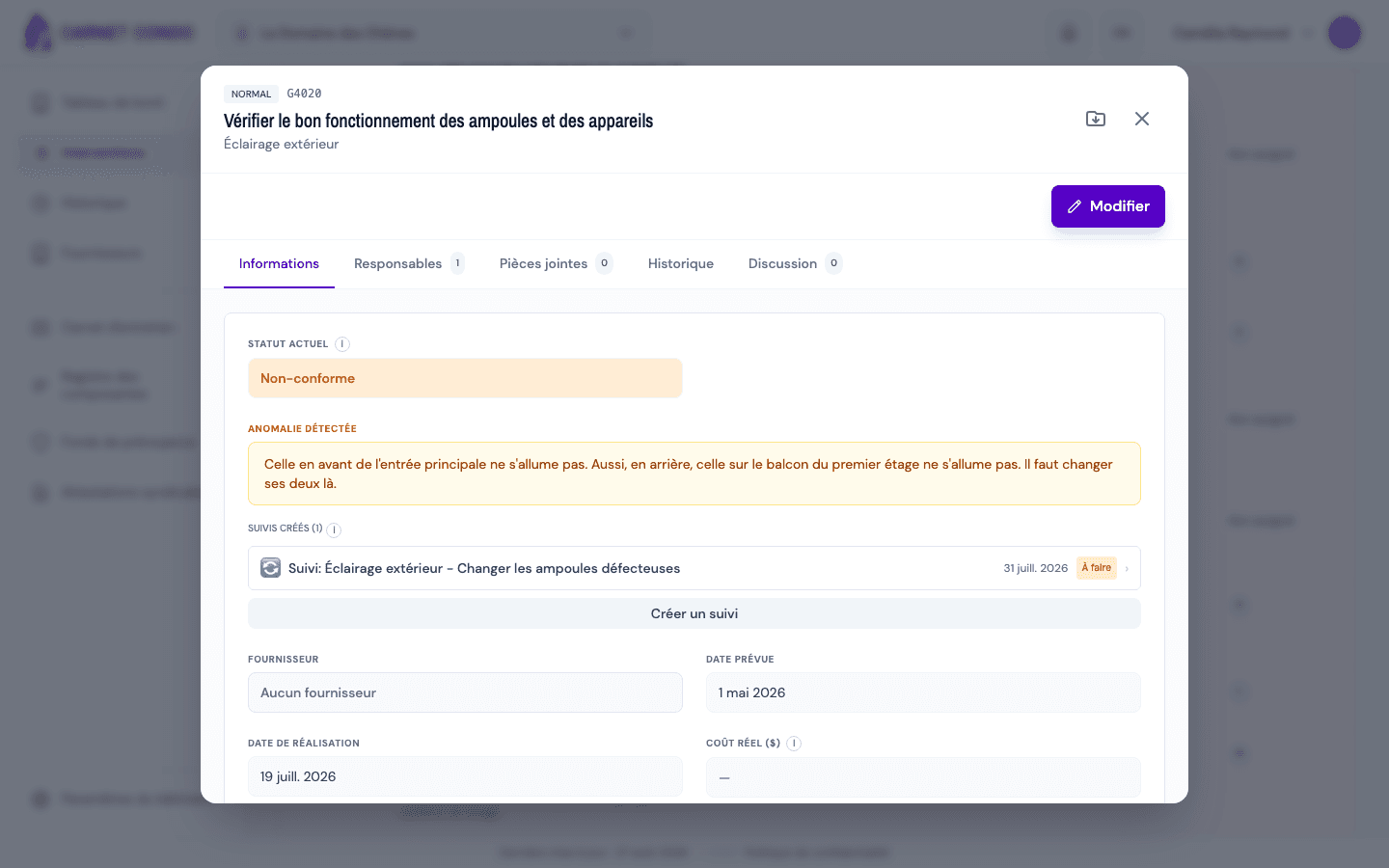
Parent side: open the non-compliance from "History", "Information" tab. Below the "Detected anomaly" box, the "Follow-ups created (n)" block lists each follow-up: 🔄 icon, follow-up title, scheduled date and status badge.
-
Click a follow-up row: the follow-up's record opens.
-
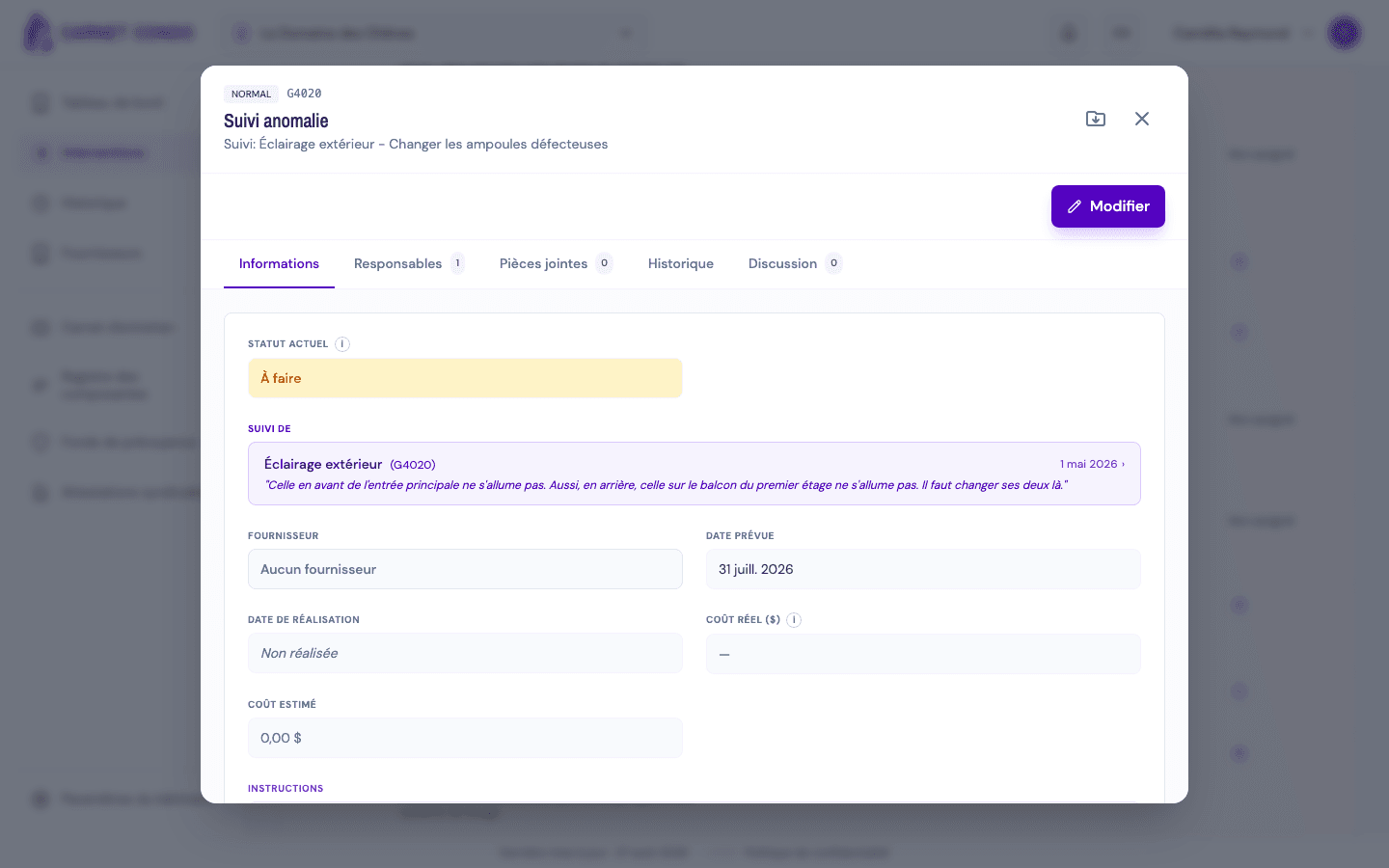
Follow-up side: in the "Information" tab, the purple "Follow-up of" block shows the original intervention: component, Uniformat code, date and the anomaly in quotes. Click it to go back to the non-compliance.
Two-way navigation
From the non-compliance you see and open its follow-ups; from a follow-up you go back to the original non-compliance.
Tips and common mistakes
- Several follow-ups: one non-compliance can have several; they are all listed under "Follow-ups created".
- Follow-up status: the badge shows where each follow-up stands (To do, In progress, Compliant…), so you know whether the fix is done.
- Fix done? Remember to resolve the original non-compliance: completing the follow-up does not resolve it automatically.
See also
Create a follow-up
Schedule a dated corrective intervention from a detected anomaly; the follow-up is linked to the non-compliance and appears as a new intervention.
Force (correct) a locked status
As an administrator, correct the status of a finished intervention that was set by mistake, with a required reason that is logged (Law 16).