
Create a follow-up
Schedule a dated corrective intervention from a detected anomaly; the follow-up is linked to the non-compliance and appears as a new intervention.
- Audience
- Administrator
- Screen
- Intervention record → "Create follow-up" window
- Verified version
- App 1.0.0
Goal
Schedule a corrective intervention to deal with an anomaly found on a non-compliance. The follow-up is linked to the original intervention and appears in your interventions as a new task, with its own date, priority and assignees.
Audience
Administrator of the building.
Prerequisites
- The intervention is Non-compliant, with a described anomaly, and not resolved yet.
- Be an administrator (the "Create follow-up" button does not appear for other members).
Steps
-
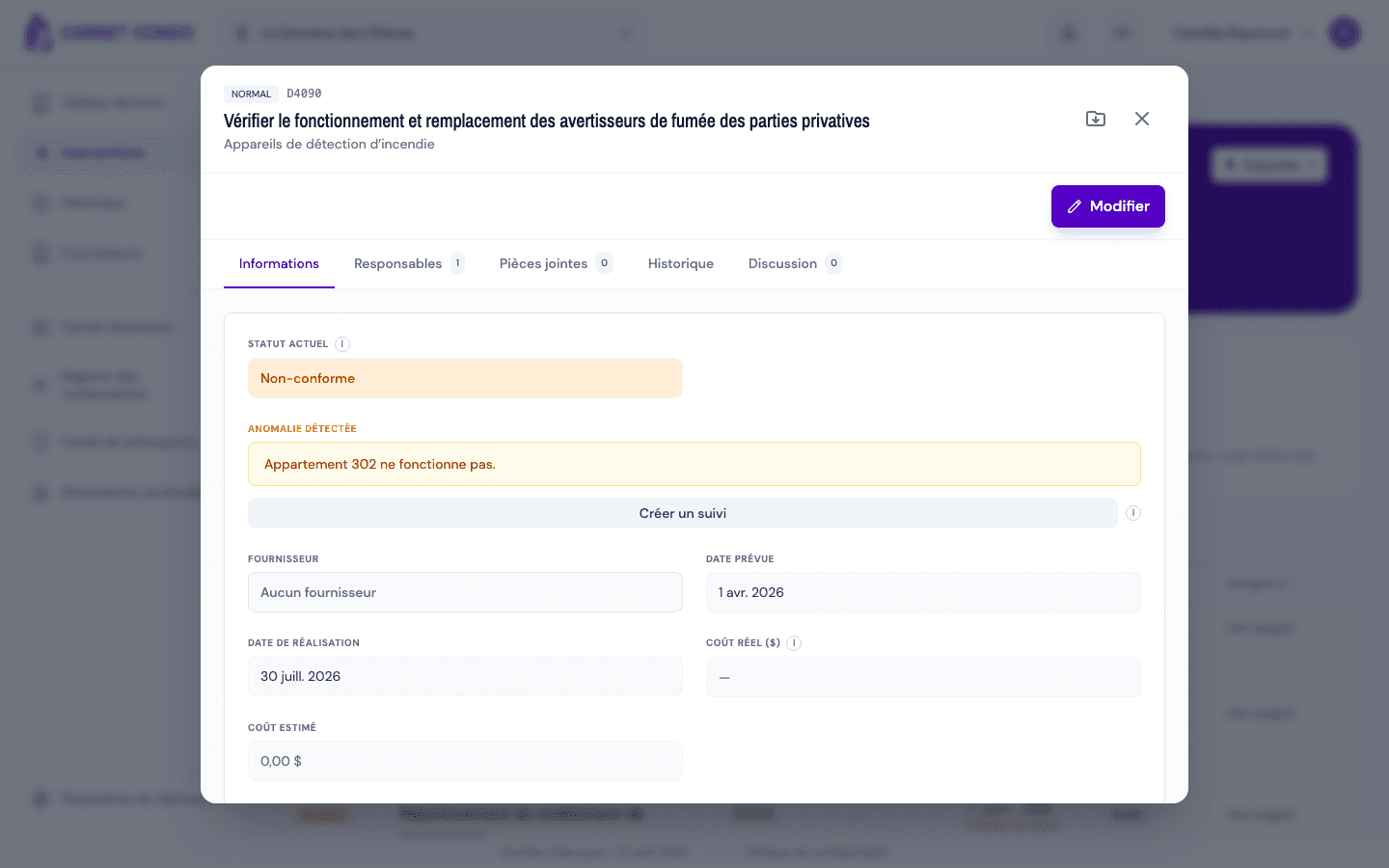
Open the non-compliant intervention from "History" (left menu). In the "Information" tab, the "Detected anomaly" box shows the description; the "Create follow-up" button is right below it.
-
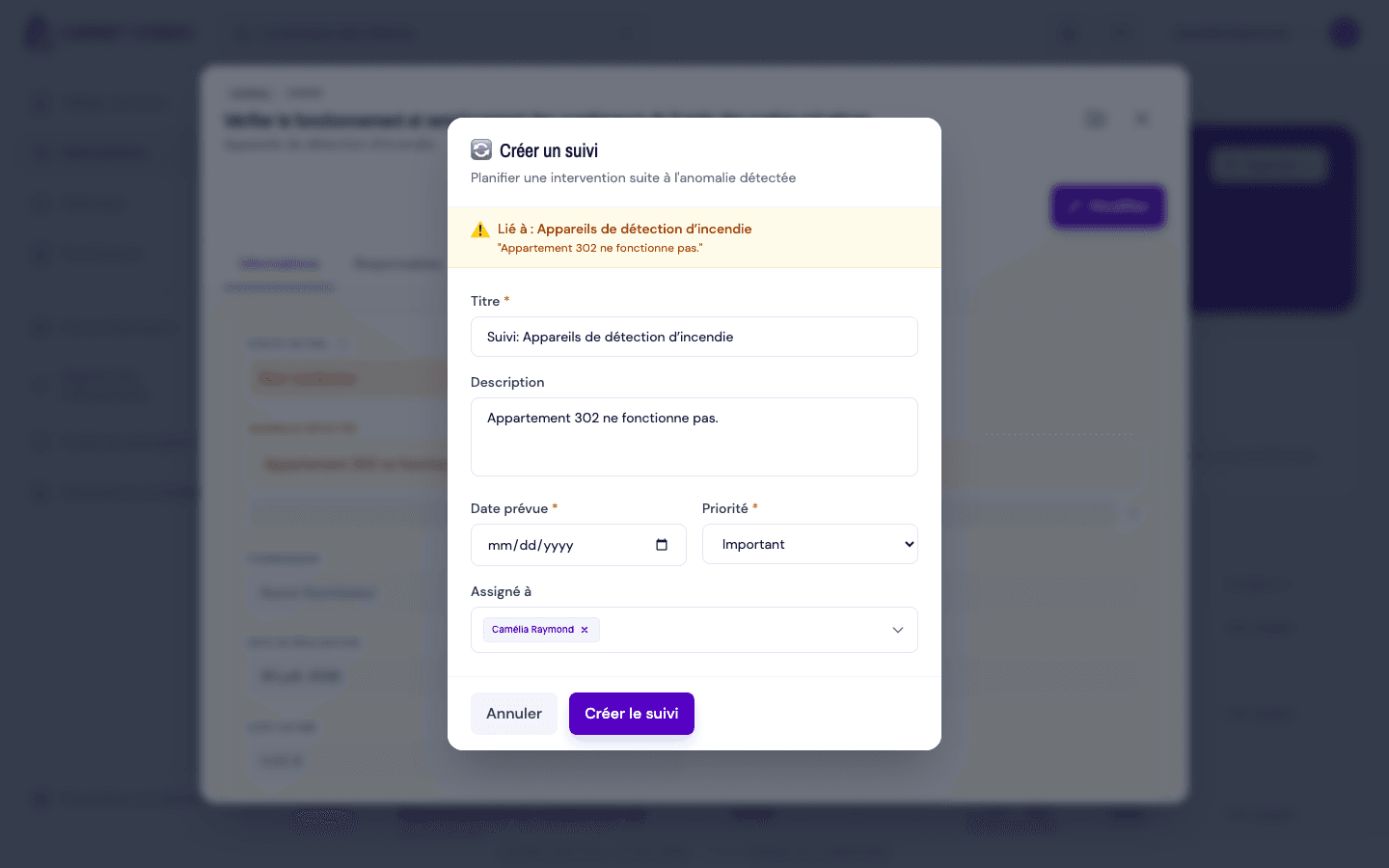
Click "Create follow-up". The window opens and shows "Linked to: (component)" with the anomaly.
-
Check or fill in the fields:
- "Title" (required): pre-filled with the component name, editable;
- "Description": pre-filled with the anomaly;
- "Scheduled date" (required): today or later;
- "Priority" (required): Important by default;
- "Assigned to": pre-filled with the assignees of the original intervention.
-
Click "Create follow-up". The message "Follow-up created" appears, and the follow-up is added below the anomaly under "Follow-ups created".
Where do I find the follow-up?
The follow-up appears in "Interventions" as a new intervention. It stays linked to the original non-compliance, and you can move from one to the other in both directions (see View the parent ↔ follow-up link).
Tips and common mistakes
- Title and date required: without a title ("Title is required") or a scheduled date ("Scheduled date is required"), creation is blocked.
- No past dates: the date picker only accepts today or a future date.
- No "Create follow-up" button: you are not an administrator, or the non-compliance is already resolved (the problem is fixed).
- Several follow-ups: you can create several follow-ups for the same anomaly. One of them can later be attached to the resolution ("Link to a follow-up").
See also
Undo a resolution
Remove the resolution from a non-compliant intervention to bring it back to "unresolved non-compliant" and readjust the compliance counts.
View the parent ↔ follow-ups link
Move between a non-compliance and the follow-ups created from its anomaly, in both directions ("Follow-ups created" on the parent, "Follow-up of" on the follow-up).