Force (correct) a locked status
As an administrator, correct the status of a finished intervention that was set by mistake, with a required reason that is logged (Law 16).
- Audience
- Administrator only
- Screen
- Intervention record, edit mode
- Verified version
- App 1.0.0
Goal
Correct a status set by mistake on a finished intervention (Compliant, Non-compliant or Cancelled). These statuses are normally locked; the admin correction rewrites them. To keep Law 16 traceability, every correction requires a mandatory reason and is logged.
Audience
Administrator only. Other members do not see the statuses that force the lock.
Prerequisites
- The intervention is finished (Compliant, Non-compliant or Cancelled): it is listed under "History". On an intervention that is still open, only the normal status changes are offered.
- Be an administrator.
Steps
-
Open the intervention from "History", then click "Edit".
-
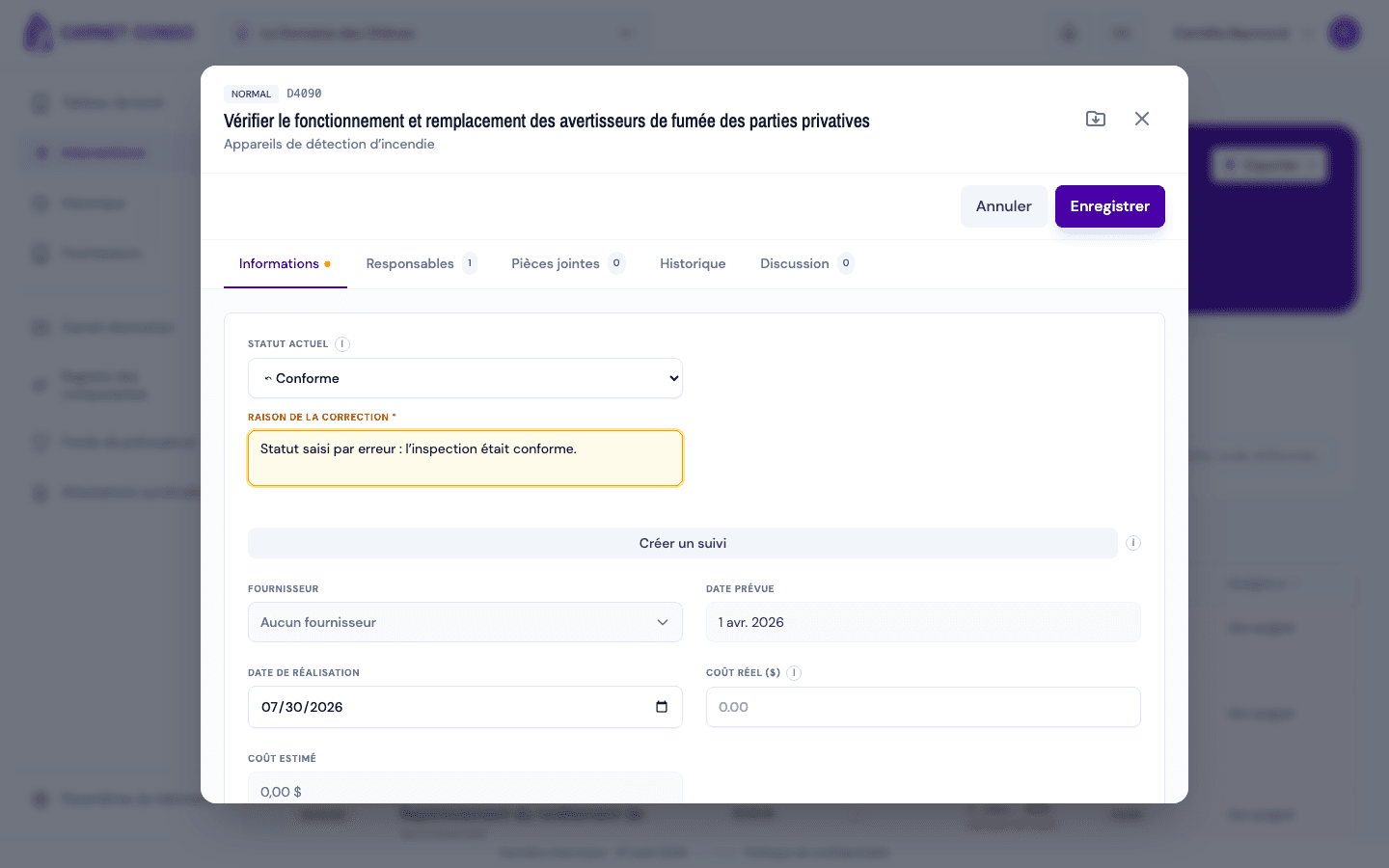
Open the "Current status" menu. Statuses that force the lock are preceded by an arrow ⤺ (for example "⤺ Compliant"). Choose the correct status.
-
A "Reason for the correction" field (required) appears below the menu, with the hint "Why was this status wrong?". Enter the justification.
-
Click "Save". The message "Status corrected and logged" appears.
The status is rewritten AND logged
The correction changes the status (the compliance counts are recalculated), but the trace is kept in the record's "History" tab, under "Status corrected (admin)": old status, new status, author, date and reason.
Tips and common mistakes
- Reason required: without a reason, the correction is refused.
- Forcing to "Non-compliant": the anomaly description is also required, as for a normal finding.
- No ⤺ arrow in the menu: you are not an administrator, or the intervention is not finished yet.
- Correction ≠ resolution: to say "the problem is fixed" without erasing the finding, use Resolve a non-compliance instead. The correction is for fixing a status error.
- Elsewhere in the app: the same admin correction ("Reason for the correction" field) exists on routine repairs and on major repairs and replacements.
See also
View the parent ↔ follow-ups link
Move between a non-compliance and the follow-ups created from its anomaly, in both directions ("Follow-ups created" on the parent, "Follow-up of" on the follow-up).
Read your dashboard
Understand the building's home page: the To do, Overdue and Completed cards, the list of interventions and how to focus it with one click.