
Building & team
Change a member's business role
Edit the business role shown on a building team member's card.
- Audience
- Administrator
- Screen
- Building settings, Members sub-tab → member card
- Verified version
- App 1.0.0
Goal
Update a member's business role (co-owner, manager, etc.) without touching their administrator rights.
Audience
Administrator of the building.
Prerequisites
- Be an administrator.
Steps
- Open Building settings in the sidebar (at the very bottom, gear icon), then the Members sub-tab.
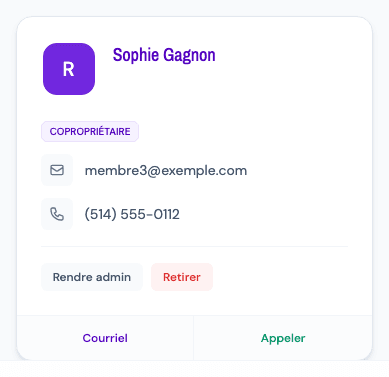
- On a member's card, the role is shown under the name as a clickable pill (tooltip "Click to edit the role").
- Click the pill: it turns into a drop-down list of roles (President, Vice-president, Treasurer, Secretary, Administrator, Concierge, External manager, Co-owner).
- Choose the new role. The change is immediate and a message confirms it. The list closes if you click elsewhere.
Also editable on your own card
Unlike administrator rights, the role can be changed even on your own card.
Tips and common errors
- Same role: choosing the role already in place saves nothing.
- Read-only access: if the subscription is overdue or canceled, the management actions are disabled (tooltip "Read-only access"). Settle the subscription in the Subscription sub-tab.
- Failure: an error message appears; try again.