
Building & team
Resend or cancel a pending invitation
Manage a building's pending invitations: resend the invitation email or cancel the invitation.
- Audience
- Administrator
- Screen
- Building settings, Members sub-tab → Pending invitations
- Verified version
- App 1.0.0
Goal
Follow up with someone who hasn't accepted their invitation yet, or cancel an invitation sent by mistake.
Audience
Administrator of the building.
Prerequisites
- Be an administrator.
- Have at least one pending invitation on the building.
Steps
- Open Building settings in the sidebar (at the very bottom, gear icon), then the Members sub-tab.
- Below the invitation card, find the "Pending invitations (N)" section. Each invitation is a card with the email, a status badge ("Invitation sent" or "Not invited yet"), the role, the "Added on" date and, when applicable, "Email sent on".
- On the card you want, choose:
- Resend (or Send invitation if the email was never sent): sends the invitation email again;
- Remove: cancels the invitation, which disappears from the list.
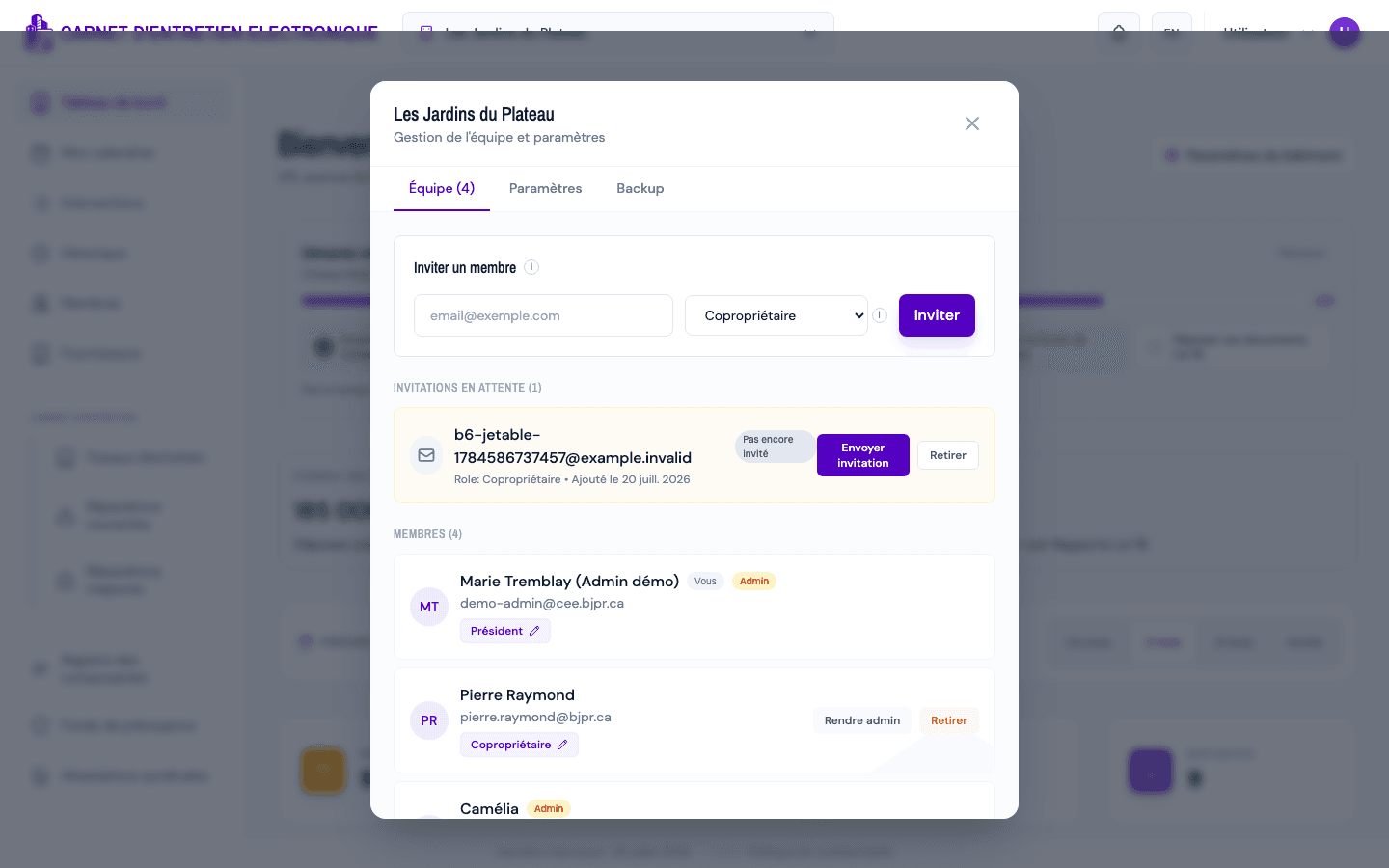
The section only appears when needed
The "Pending invitations" section is only shown if there's at least one invitation not yet accepted.
Tips and common errors
- "Not invited yet" badge: the person was added, but the email hasn't been sent yet. Use Send invitation.
- Read-only access: if the subscription is overdue or canceled, the management actions are disabled (tooltip "Read-only access"). Settle the subscription in the Subscription sub-tab.
- Failure: an error message appears if the resend or cancellation fails; try again.