Building & team
Download a backup of the building
Download a ZIP file containing all of the building's data, from Building settings.
- Audience
- Administrator
- Screen
- Building settings, Backup sub-tab
- Verified version
- App 1.0.0
Goal
Keep a complete copy of the building's data on your side, just in case.
Audience
Administrator of the building.
Prerequisites
- Be an administrator.
Steps
- In the sidebar, click Building settings, then the Backup sub-tab.
- The page shows when the last backup was downloaded (or "No backup downloaded yet for this building").
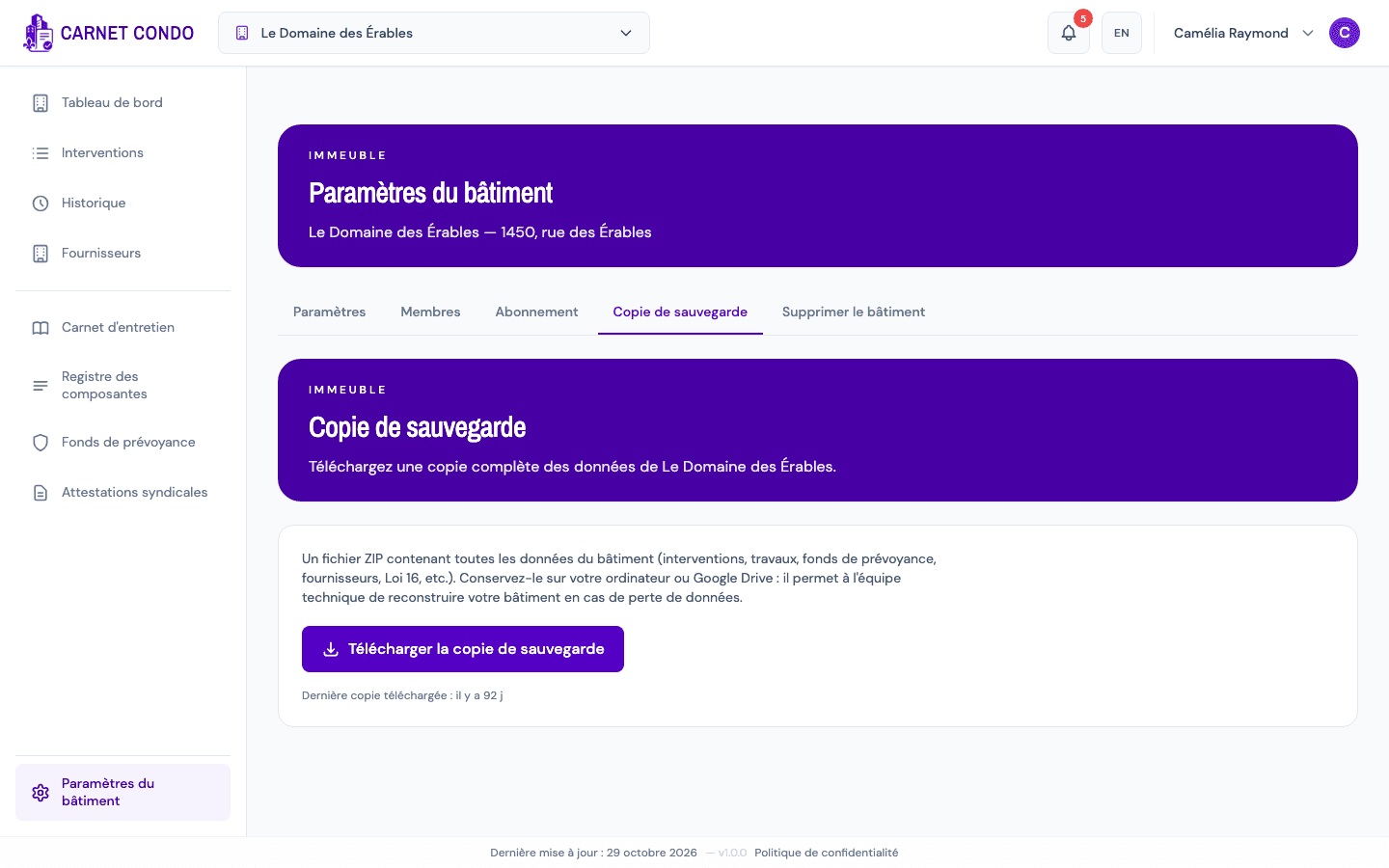
- Click Download backup. Generating it takes a few moments ("Generating backup..."), with each step shown as it goes.
- A ZIP file is downloaded and a message confirms it worked.
What the backup contains
All of the building's data: interventions, repairs, reserve fund, suppliers, Loi 16, documents, etc. Keep it on your computer or in Google Drive: it lets the technical team rebuild your building if data is ever lost.
Not the same as exporting your personal data
The backup contains the building's data. For your own personal information only, see Export my personal data.
Tips and common errors
- "… missing file(s). See manifest.json": the backup was downloaded, but some files couldn't be included. The
manifest.jsonfile in the ZIP lists them; try again later. - Download failed: try again.