Work orders (occurrences)
Send a reminder to assignees
Follow up by email with the assignees of an overdue intervention, with an optional personal note.
- Audience
- Administrator
- Screen
- Task record (Upcoming tab), repair record
- Verified version
- App 1.0.0
Goal
Follow up by email with the assignees of an overdue intervention.
Audience
Administrator of the building.
Prerequisites
- Be an administrator (the building must not be read-only).
- The intervention must be overdue.
- At least one assignee must be assigned to it.
Where to find the button
The "Send reminder" button only appears on what is overdue:
- Maintenance work: open the task's record (Maintenance logbook › Maintenance work), Upcoming tab. Each overdue intervention has its own reminder button in the table.
- Routine repairs and major repairs: the button is in the repair's record, when it is overdue.
It isn't in the record of an intervention opened from the Interventions page.
Steps
- Click "Send reminder". The "Send a reminder" window opens.
- Check the Recipients: these are the assigned people. If a reminder was already sent, the window says so ("Last reminder sent: … ago").
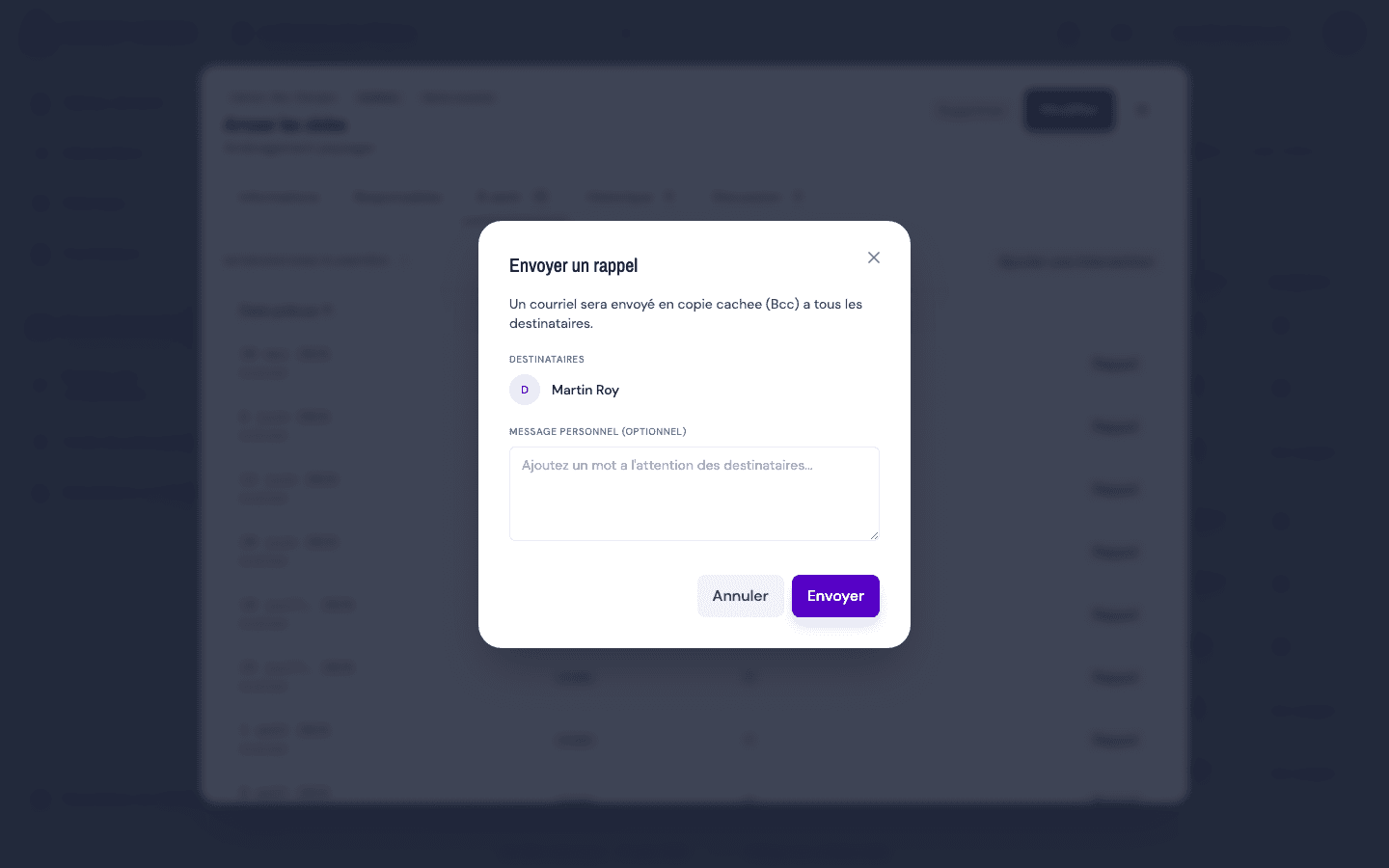
- If needed, add a Personal note (optional).
- Click Send. An email goes to all recipients as a blind copy, and a message confirms the number of recipients.
Tips and common errors
- Greyed-out button "Assign someone first": no one is assigned; add an assignee, then try again.
- No button: the intervention isn't overdue, or you're not an administrator.
- Avoid duplicates: the "Reminder sent … ago" note on the row tells you a follow-up was just sent.
- Sending failed: try again.
See also
Assign or unassign yourself from an intervention
Assign or remove yourself from an intervention through the Assignees tab, choosing the scope: this intervention only or the entire maintenance task.
Comment on an intervention (Discussion tab)
Talk with an intervention's assignees in its Discussion tab: write, edit and delete a comment; assigned people are notified.