Mark an intervention non-compliant
Move an intervention to the Non-compliant status and describe the anomaly found; the anomaly description is required.
- Audience
- Administrator or assigned person
- Screen
- Intervention record, edit mode
- Verified version
- App 1.0.0
Goal
Declare that an intervention was done but that an anomaly was found. The Non-compliant status documents the problem and then lets you open a follow-up.
Audience
Administrator of the building or a person assigned to the intervention.
Prerequisites
- Be an administrator or assigned.
- The intervention must not already be in a terminal status.
- Have switched the intervention to edit mode.
Steps
-
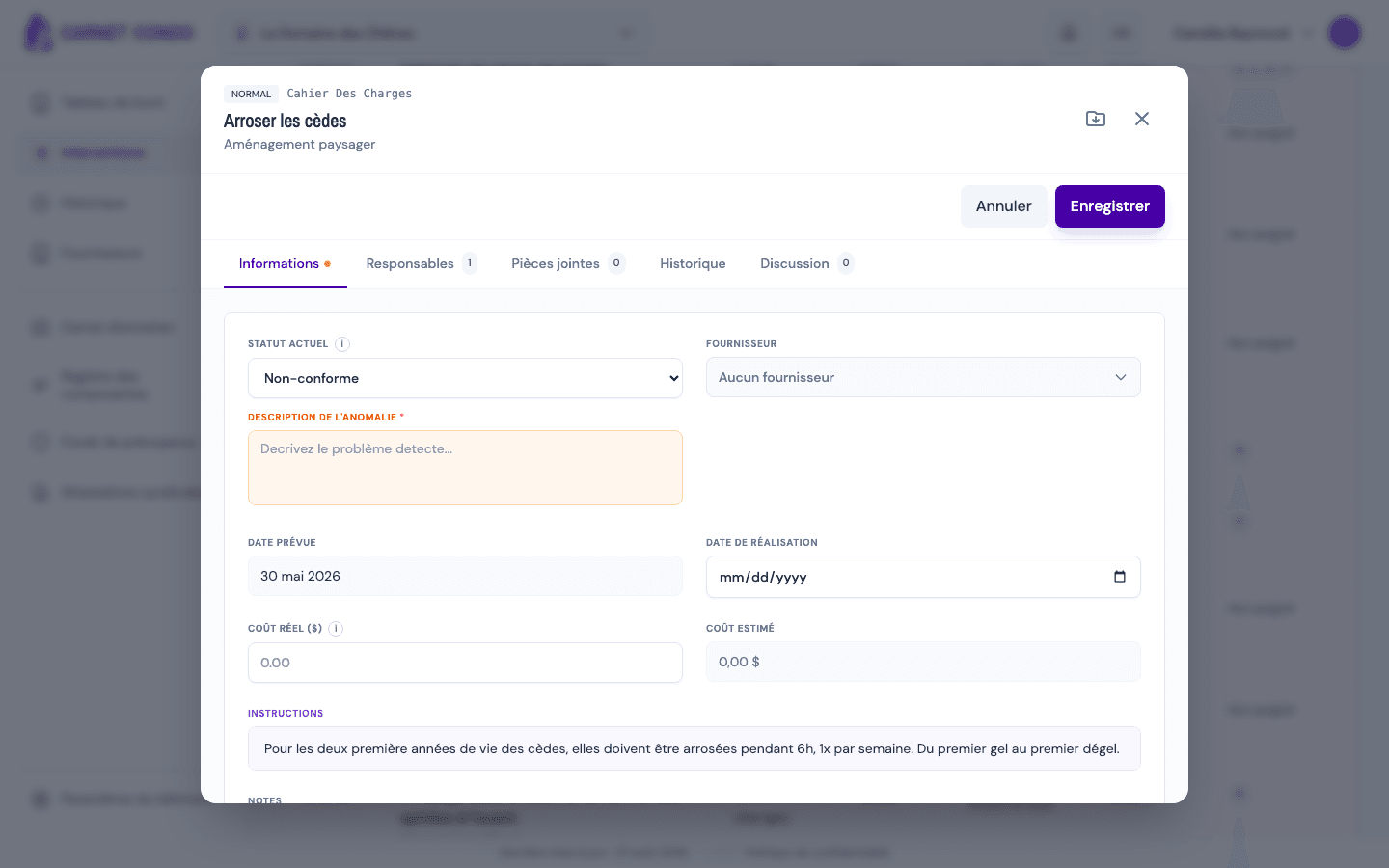
In edit mode, open the "Current status" menu and choose Non-compliant.
-
In the "Anomaly description" area, describe precisely the problem found.
-
Click "Save". The anomaly then shows in an amber panel in reading mode.
The anomaly description is required
Without text in the anomaly area, saving fails with the message "Anomaly description is required". Describe the problem before saving.
Tips and common errors
- Opening a follow-up: after a Non-compliant status, an administrator can open "Create follow-up" (a follow-up intervention) to address the anomaly.
- Terminal status: like Compliant, Non-compliant is terminal; reopening it requires an administrator override.
- Be precise: the anomaly description is kept in the history and forms the basis of the follow-up; describe what was observed, not just "to review".
See also
Mark an intervention compliant
Complete an intervention by moving it to the Compliant status; the completion date is set to today and any anomaly is cleared.
Record the completion (supplier, date, cost, notes)
Document how an intervention was completed in edit mode: supplier, completion date, actual cost and notes.