
Export an intervention to PDF
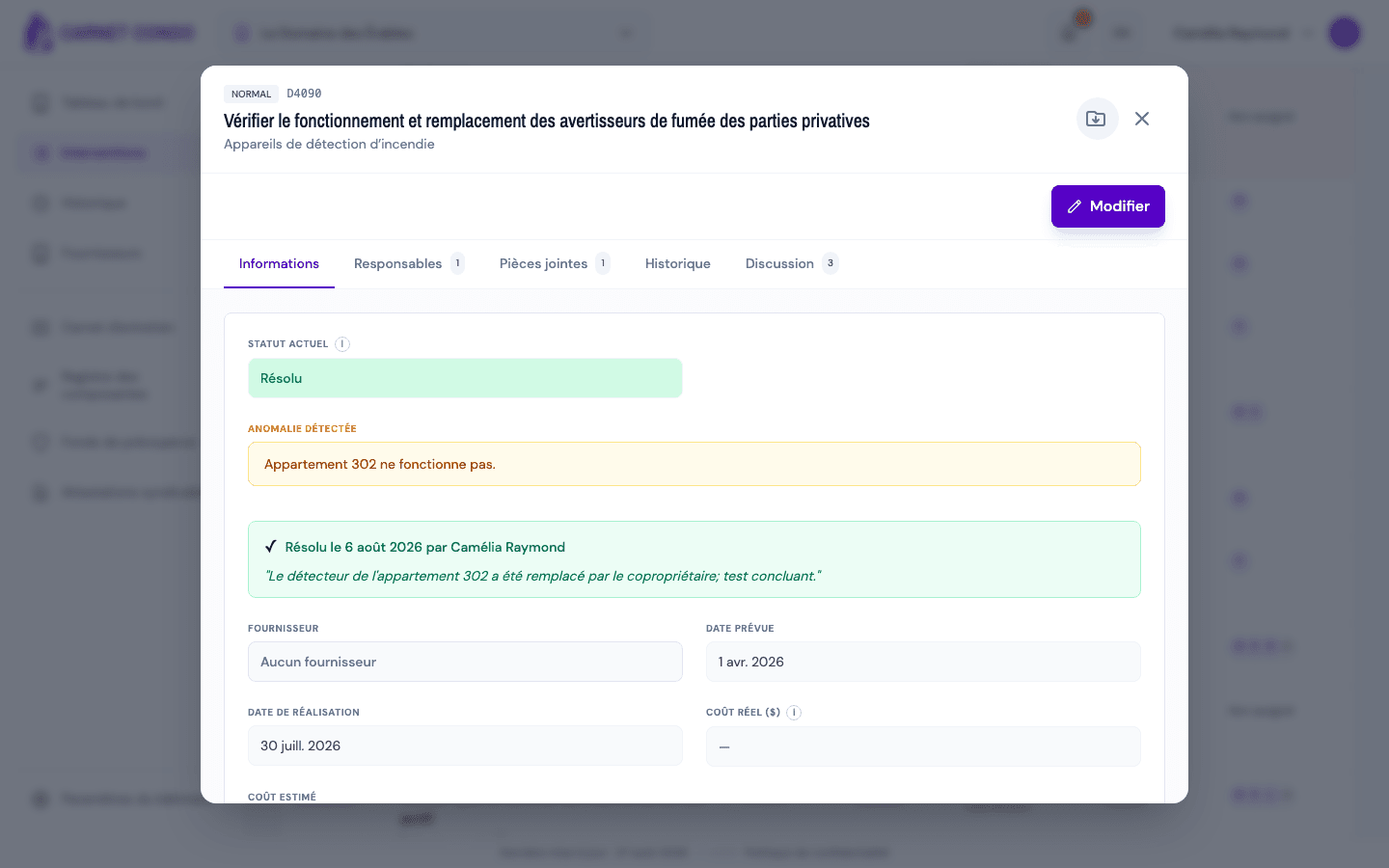
Download an intervention's complete record as a PDF (status, dates, costs, anomaly, follow-ups, comments, history, photos and documents) from the header icon.
- Audience
- All members
- Screen
- Intervention record › header
- Verified version
- App 1.0.0
Goal
Keep or share a complete record of an intervention: with a supplier, an insurer, the board of directors or for a Law 16 file.
Audience
All members who can open the intervention.
Prerequisites
- Have opened the intervention's record.
Steps
-
At the top right of the record, next to the closing X, click the folder icon with an arrow (tooltip "Export to PDF").
-
The PDF is prepared then downloaded. Its name follows the pattern
intervention_<building>_<identifier>_<date-time>.pdf.
PDF contents
- Status, building, supplier, planned date, completion date, actual cost and estimated annual cost;
- the detected anomaly and the follow-ups created (for a non-compliance);
- the task's instructions and the intervention's notes;
- the comments from the Discussion tab;
- the assignments (assignees) and the action history;
- the photos, embedded in the document;
- the documents, as links.
Status of a resolved non-compliance
In the PDF, a resolved non-compliance appears as "Non-compliant · Resolved": the original finding stays visible, as required by Law 16.
Tips and common errors
- A photo or document is missing: if a file cannot be loaded, the PDF is still produced, without that item. Try again later to get it complete.
- Export several interventions: use the Export button of the Interventions or History page instead (list as Excel or PDF).
- Repairs: routine repair and major repair records have the same export icon.
See also
Comment on an intervention (Discussion tab)
Talk with an intervention's assignees in its Discussion tab: write, edit and delete a comment; assigned people are notified.
Resolve a non-compliance
Record that the problem on a non-compliant intervention was fixed, with a required repair note; the intervention then shows as "Resolved" without erasing the original finding (Law 16).