
Change the status (resolve, close)
Move a routine repair through its life cycle, from Reported to Assigned, In progress, Resolved and then Closed.
- Audience
- Administrator or assigned person
- Screen
- Routine repair record, edit mode
- Verified version
- App 1.0.0
Goal
Move a routine repair through its life cycle: Reported → Assigned → In progress → Resolved → Closed.
Audience
Administrator or an assigned person.
Prerequisites
Steps
-
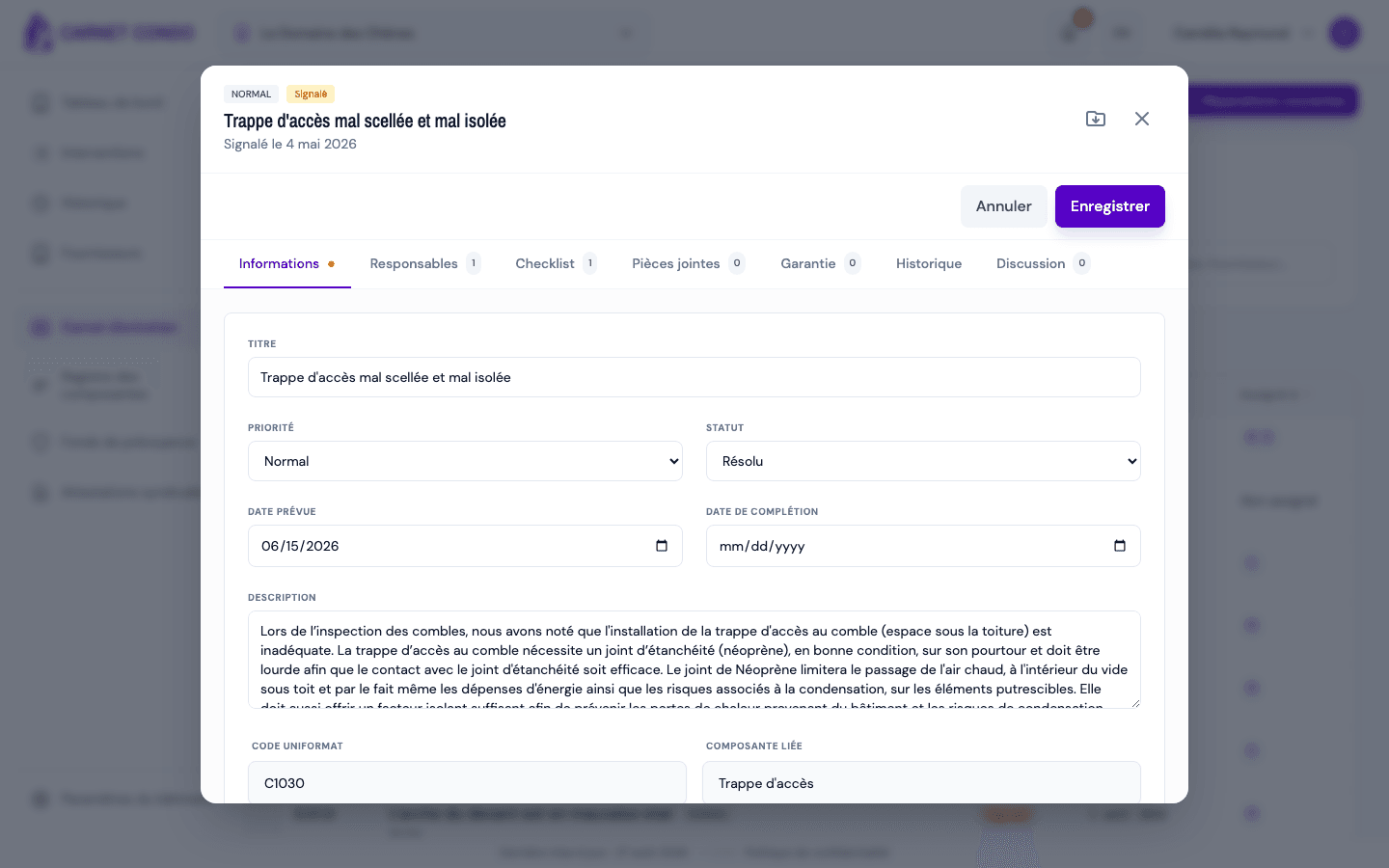
In edit mode, open the "Status" menu and choose the new status (Reported, Assigned, In progress, Resolved or Closed).
-
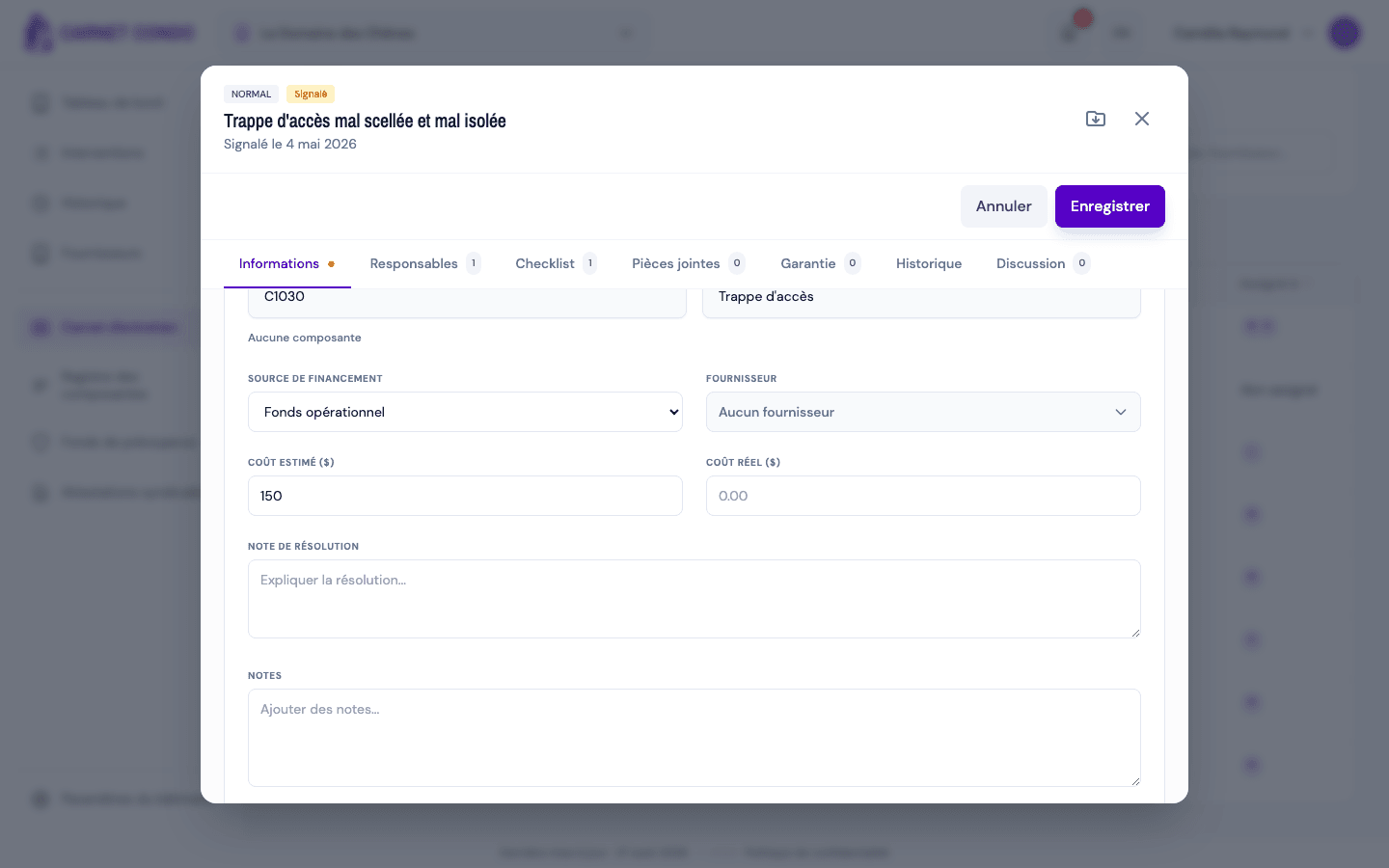
To resolve, choose Resolved: the "Resolution note" field appears further down. Describe what was done and, if needed, fill in the "Completion date" and the "Actual cost ($)".
-
Click "Save". The change is logged in the "History" tab.
"Closed" is locked
While the repair is open, you can move freely from one status to another. Once Closed, it is locked: reopening it requires an admin correction (see Force a closed status).
Tips and common mistakes
- Resolution note: it documents what was done; useful for audits and the reserve fund. It stays visible in read mode once filled in.
- Actual cost: enter it once the invoice is received; it appears in the record and in its PDF export.
- Resolved or Closed? "Resolved" means the work is done; "Closed" closes the file for good.