
View and edit a routine repair
Open a routine repair's record and switch to edit mode to update its information.
- Audience
- Administrator or assigned person
- Screen
- Routine repair record
- Verified version
- App 1.0.0
Goal
Open a routine repair to view its information, then switch to edit mode to correct it (title, priority, status, dates, component, funding, supplier, costs, notes…).
Audience
Administrator or a person assigned to the routine repair. An assigned member finds it under "Interventions" (left menu), where routine repairs are listed with the other interventions.
Prerequisites
- A routine repair exists (see Report an issue).
Steps
-
Open "Maintenance logbook" › "Routine repairs" and click a row. The record opens on the "Information" tab: priority and status at the top, "Reported on (date)", then title, priority, status, planned date, completion date, description, linked component, funding source, supplier, costs and notes.
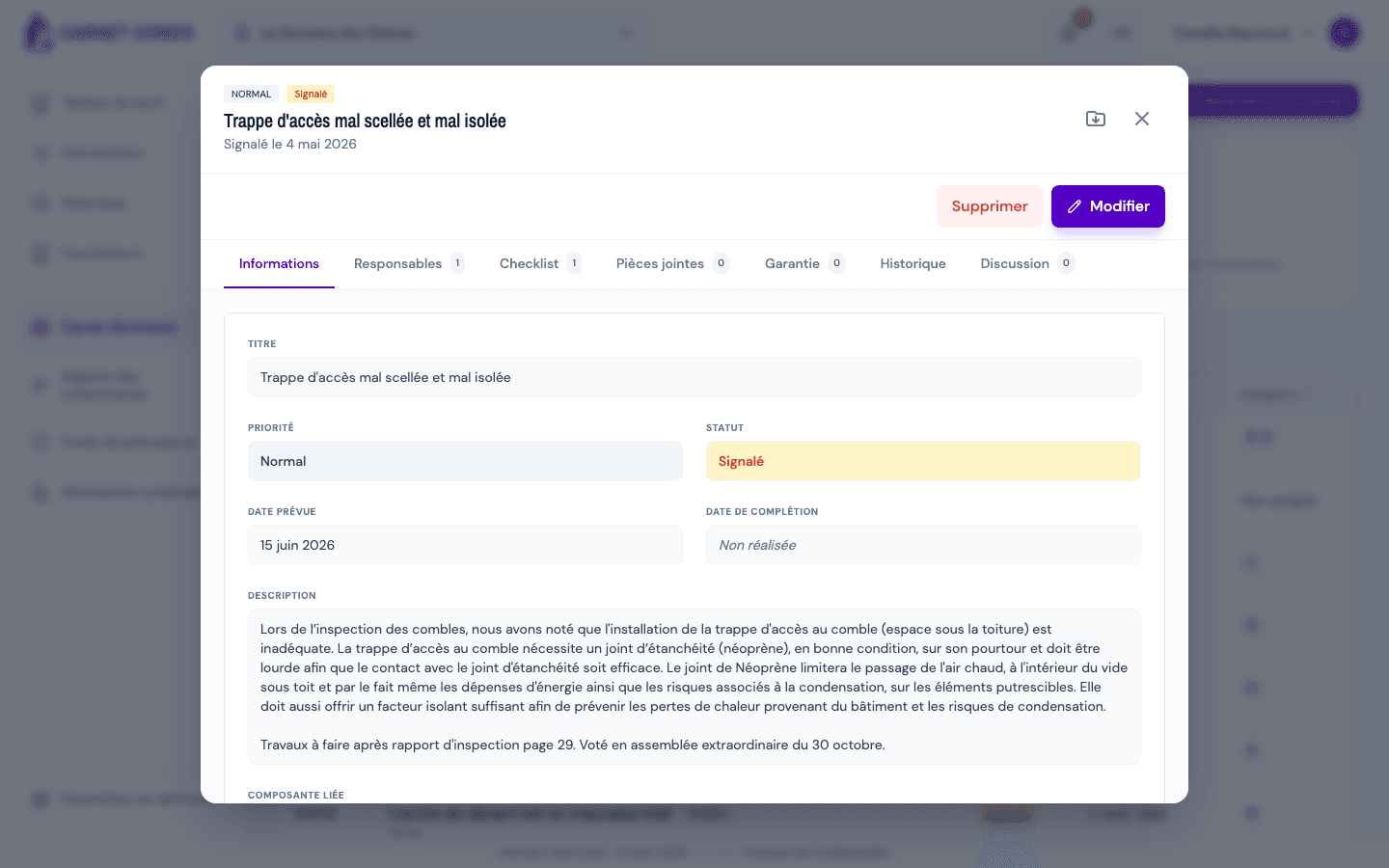
-
Click "Edit". The fields become editable and the "Cancel" and "Save" buttons replace "Delete" and "Edit".
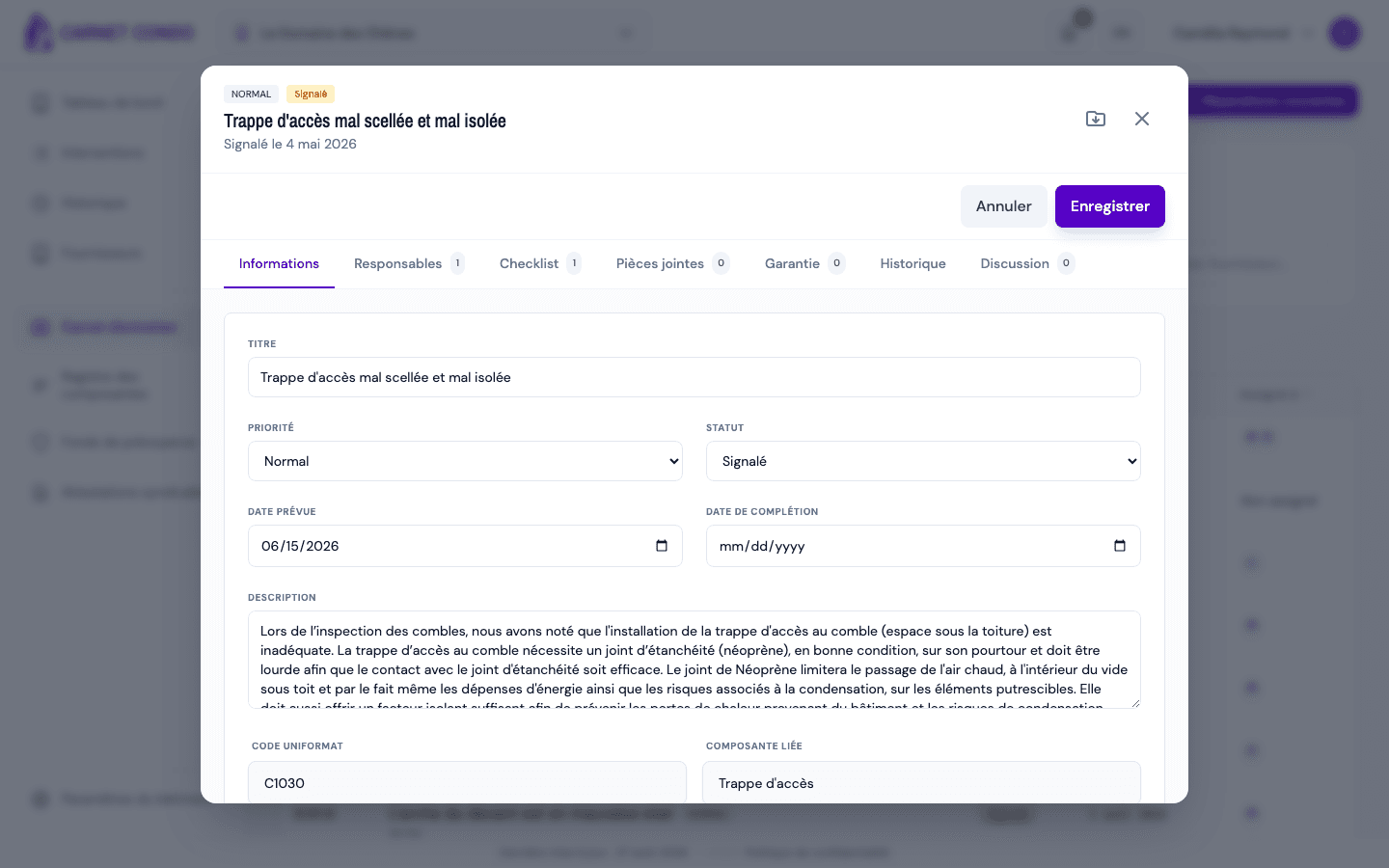
-
Change the fields you need, then click "Save". The message "Routine repair saved" appears.
The record's 7 tabs
Information, Assignees, Checklist, Attachments (photos and documents), Warranty, History and Discussion. See Checklist, attachments, warranty and discussion.
Tips and common mistakes
- Read only: until you click "Edit", the fields do not change. A non-assigned member sees the record read-only.
- Cancel: discards unsaved changes (a confirmation is asked if there are any).
- Export to PDF: the icon at the top right of the record, next to the X, downloads the record as a PDF (see Filter and export).
- Send reminder: on an overdue repair, the administrator also sees the "Send reminder" button (see Send a reminder to assignees).