
Add a warranty
Record the warranties of a major repair (manufacturer, installer, contractor) with their end date, description and supporting files.
- Audience
- Administrator
- Screen
- Record → Warranty tab
- Verified version
- App 1.0.0
Goal
Keep track of the warranties obtained for a major repair or replacement: manufacturer, installer, contractor… Each warranty has its own end date, description and supporting files.
Audience
Administrator of the building. Other members can view warranties but not change them.
Prerequisites
- A major repair exists.
Steps
-
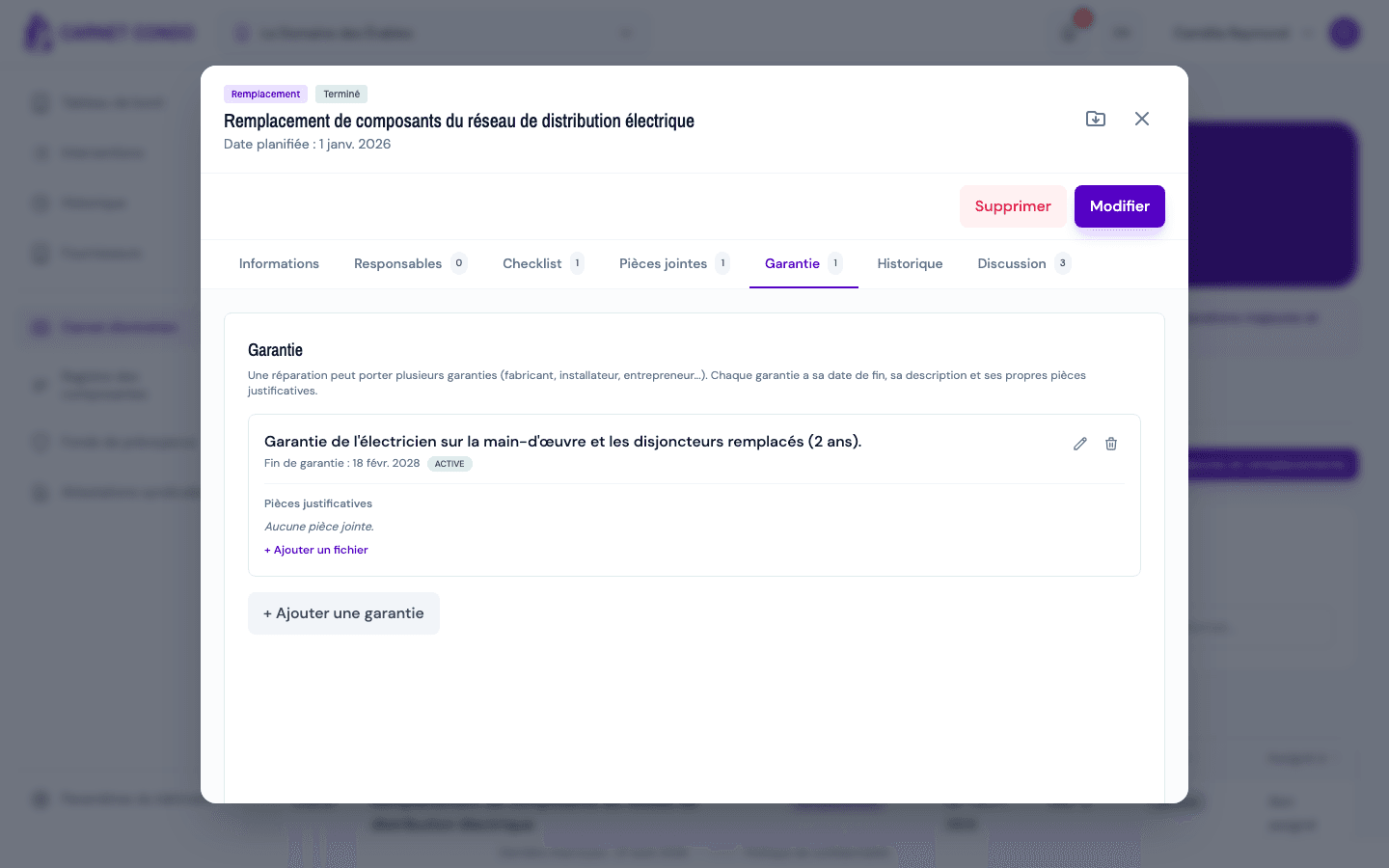
Open the record, "Warranty" tab. Warranties already recorded are listed there, each with its end date and supporting documents; with no warranty, the tab shows "No warranty recorded for this work.".
-
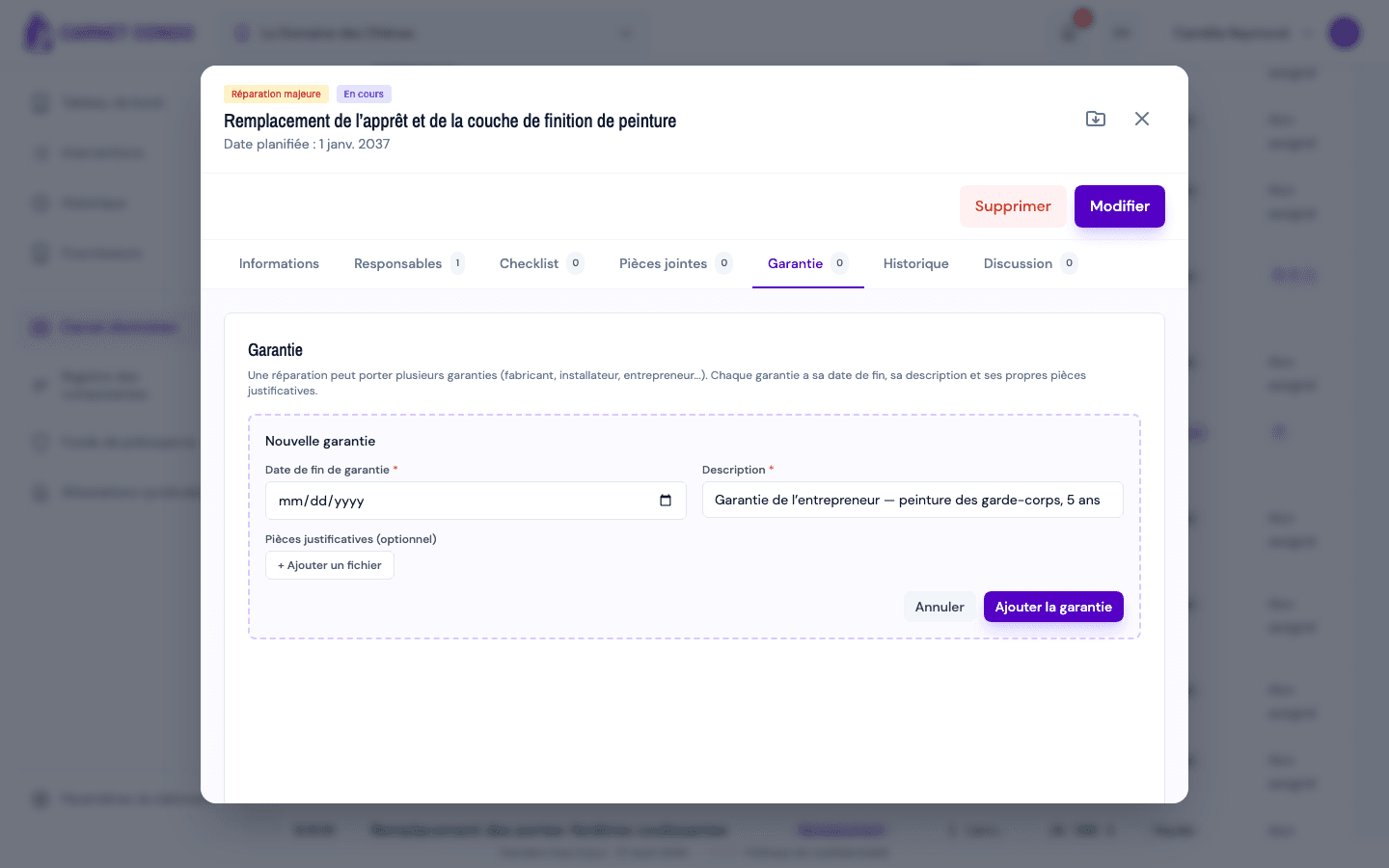
Click "+ Add a warranty". The "New warranty" form opens.
-
Fill in the "Warranty end date" (required) and the "Description" (required). If needed, add "Supporting files (optional)" (certificate, contract…).
-
Click "Add warranty". The warranty appears with its end date and an "Active" or "Expired" badge.
Several warranties
The same repair can carry several warranties. They are also visible in the component's record, under "Warranties from related works".
Tips and common mistakes
- Required fields: without an end date or a description, the warranty is refused.
- Edit or delete: use the icons on the warranty card. Deleting a warranty also removes all its supporting files (confirmation required).
- No need for "Edit": warranties are managed directly in the tab.
See also
Checklist, attachments, history and discussion
Organize a major repair with a checklist, photos and documents (Attachments tab), the action history and a discussion thread.
Filter, export and send a reminder
Filter the major repairs list, export it to Excel or PDF, export a record to PDF, and send a reminder to the assignees of an overdue work.