
Assign or self-assign
Set the people responsible for a major repair, or assign yourself, from the Assignees tab.
- Audience
- Administrator or member
- Screen
- Record → Assignees tab
- Verified version
- App 1.0.0
Goal
Set the people responsible for following up a major repair, or assign yourself.
Audience
Administrator (assign any member) or member (assign or remove yourself).
Prerequisites
- A major repair exists.
Steps
-
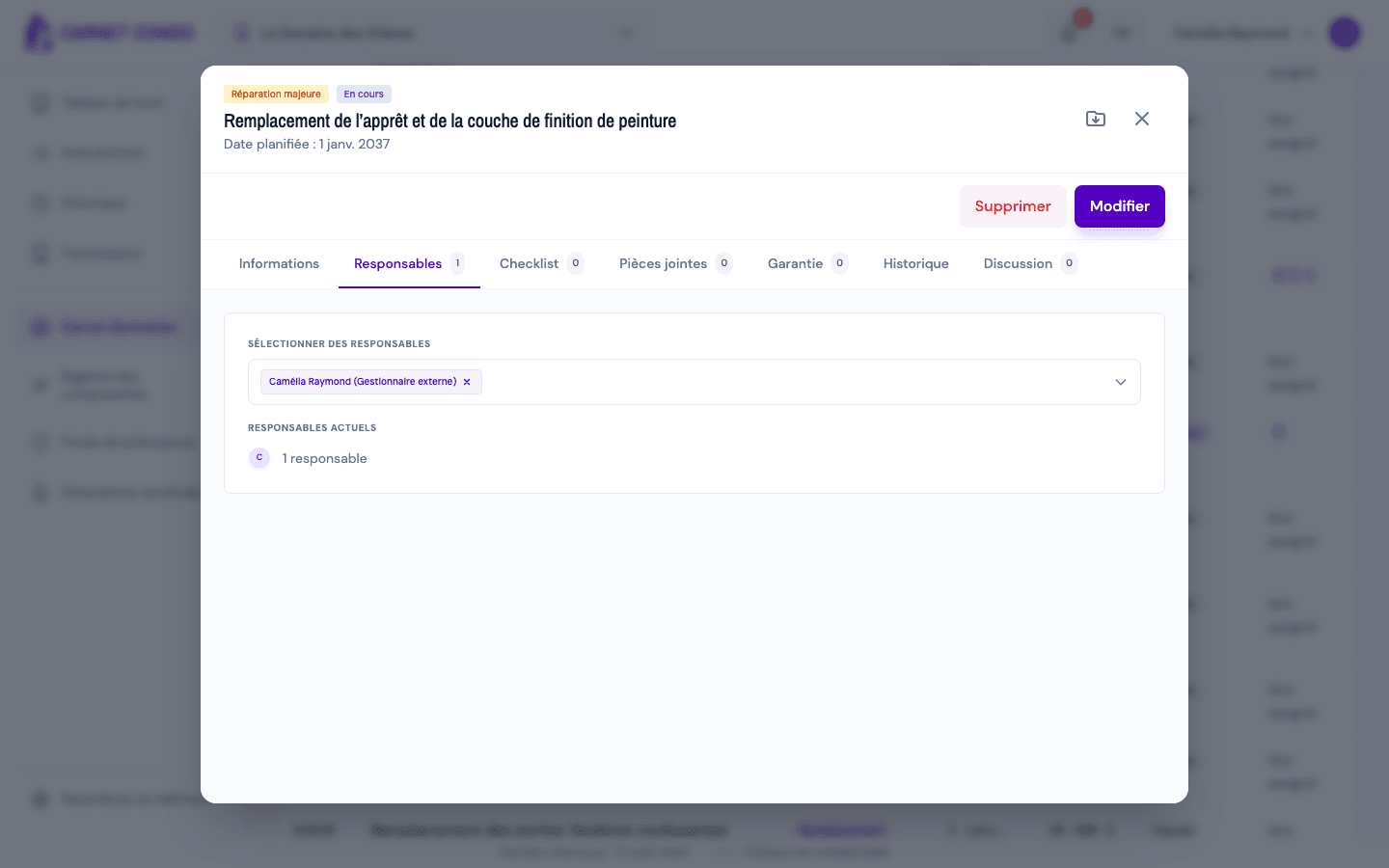
Open the record, "Assignees" tab. The number next to the tab is the number of assignees.
-
Administrator: in "Select assignees", add members or remove them with the × on their chip. Member: use "Assign me" or "Remove me".
-
The change is saved immediately: the message "Assignees updated." appears and "Current assignees" is refreshed.
Several assignees
A major repair can have several assignees. Every assignment or removal is traced in the "History" tab.
Tips and common mistakes
- No need for "Edit": assignment happens directly in the tab, without edit mode.
- Reminders: assignees are the recipients of the "Send reminder" button. Without an assignee, the button is greyed out ("Assign someone first"). See Filter, export and send a reminder.
- Assigned person: they can then edit the repair (except the estimated cost).
See also
Change the status / force a completed status
Move a major repair through its life cycle, postpone it, or correct a Completed status set by mistake with a logged reason.
Checklist, attachments, history and discussion
Organize a major repair with a checklist, photos and documents (Attachments tab), the action history and a discussion thread.