
Filter, export and send a reminder
Filter the major repairs list, export it to Excel or PDF, export a record to PDF, and send a reminder to the assignees of an overdue work.
- Audience
- Administrator
- Screen
- List (Filters, Export) and record (Export to PDF, Send reminder)
- Verified version
- App 1.0.0
Goal
Find major repairs with filters, export the list to Excel or PDF, export a record to PDF, and remind the assignees of an overdue work.
Audience
Administrator of the building.
Prerequisites
- At least one major repair exists.
Steps
-
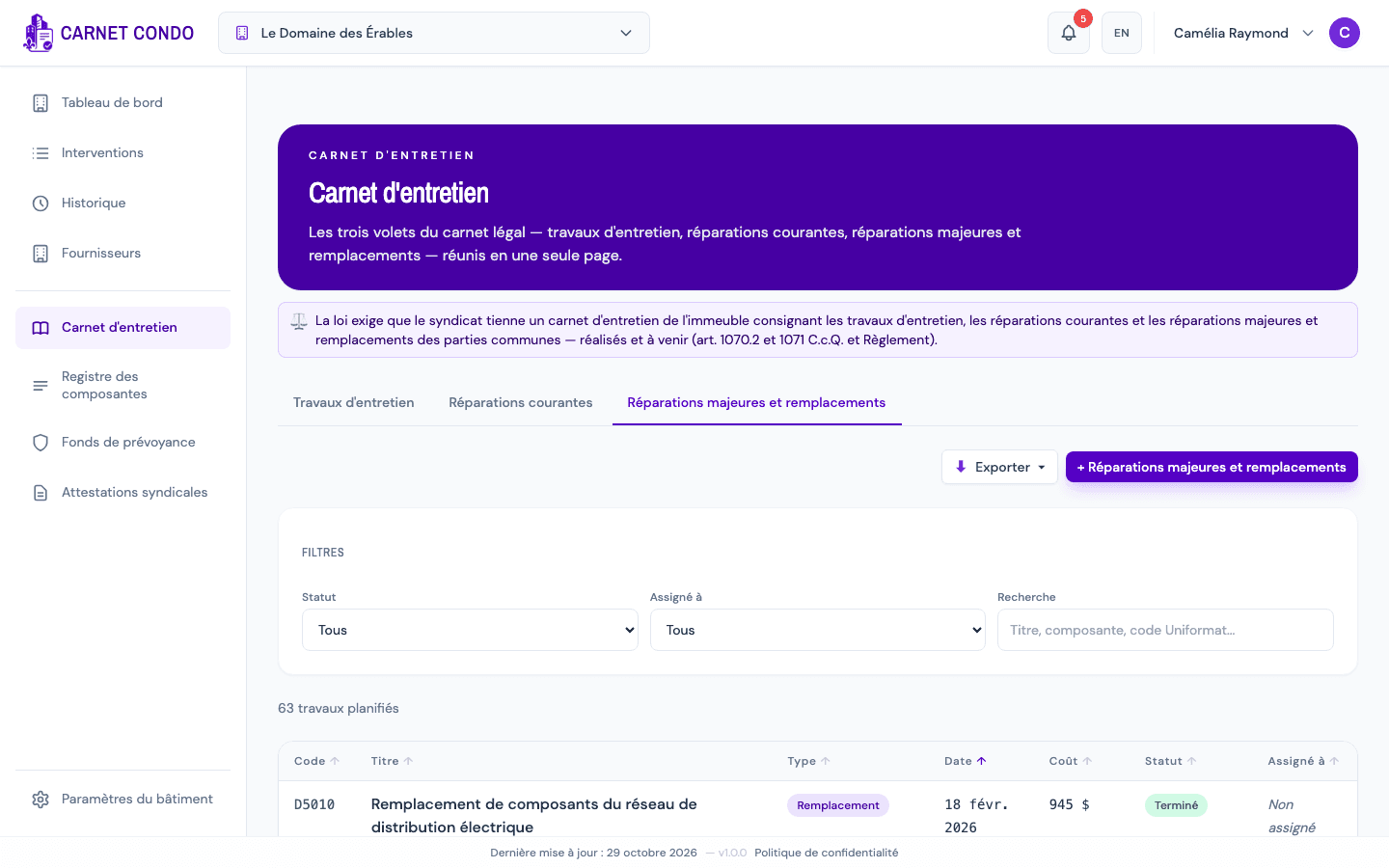
Filter: above the list, the "Filters" panel offers Status, Assigned to (including "Unassigned") and Search (title, component, Uniformat code). "Reset" clears the filters. Click a column header (Code, Title, Type, Date, Cost, Status, Assigned to) to sort.
-
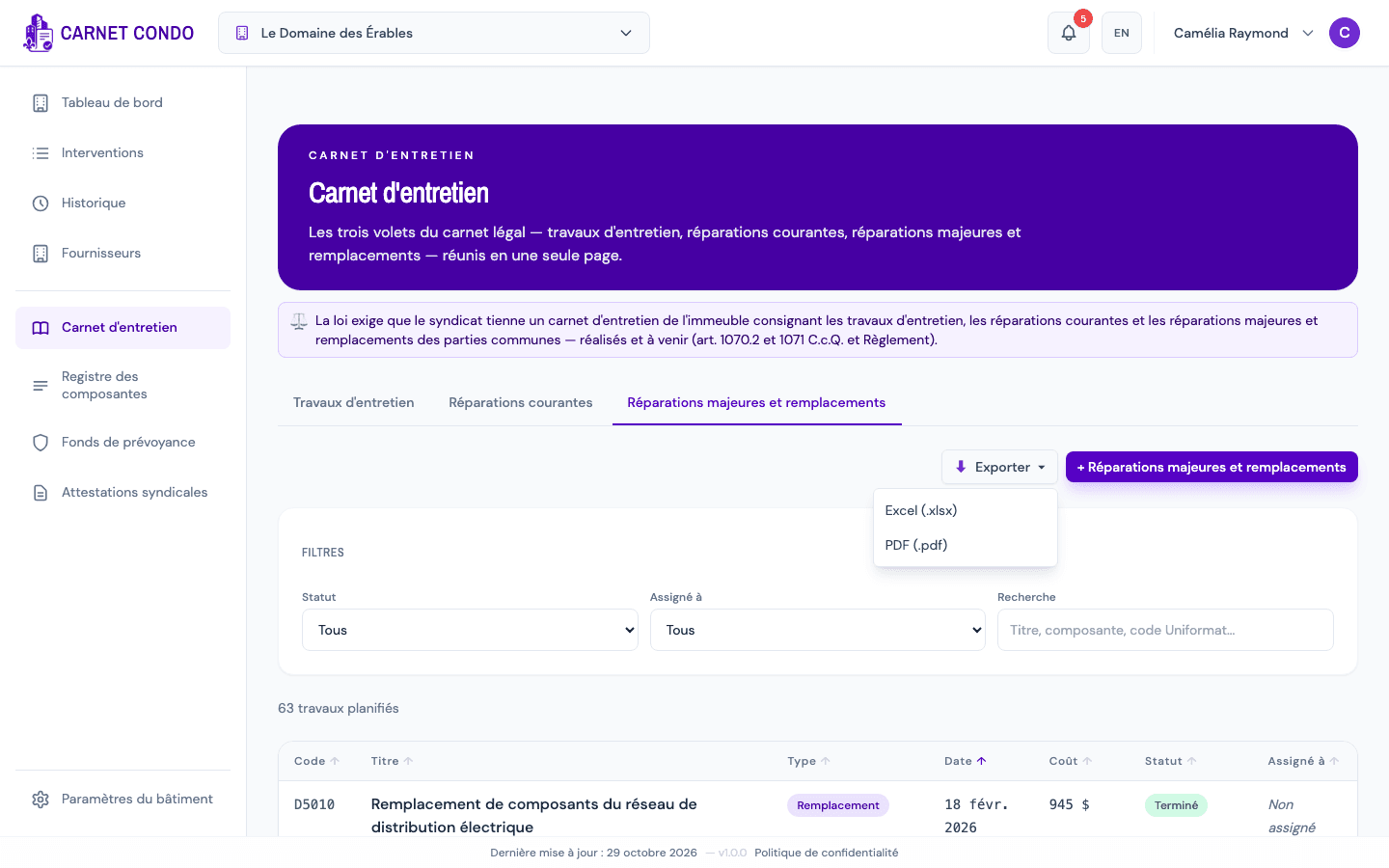
Export the list: click "Export", then "Excel (.xlsx)" or "PDF (.pdf)". The export contains the works shown, with the filters applied.
-
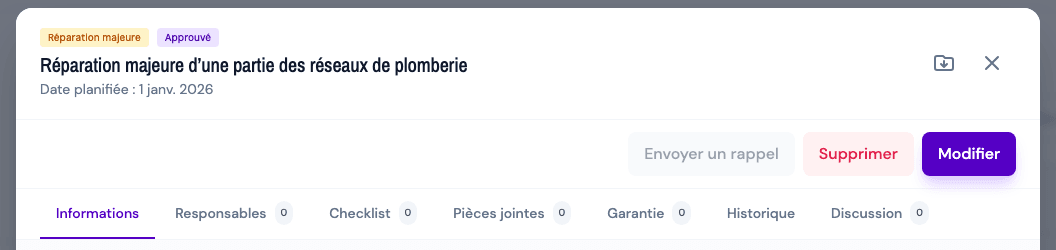
Export a record: in the record, click the "Export to PDF" icon (folder with an arrow, next to the X) to generate the full record.
-
Send a reminder: in the record of an overdue work (planned date passed, not completed nor postponed), click "Send reminder". Add a personal message if needed, then click "Send": an email goes to the assignees.
When does the reminder button appear?
"Send reminder" only appears for an administrator on an overdue work. It is greyed out until someone is assigned ("Assign someone first"). The reminder window is described in Send a reminder to the assignees.
Tips and common mistakes
- Export disabled: the Export button is inactive when there are no results ("Nothing to export").
- Nothing shows: check the search and filters, then click "Reset".