
Components & suppliers
Add, edit or delete a supplier
Create, update or remove a company from the suppliers directory.
- Audience
- Administrator
- Screen
- Suppliers → supplier record
- Verified version
- App 1.0.0
Goal
Keep the suppliers directory up to date: add a company, edit its details, or delete it.
Audience
Administrator of the building.
Prerequisites
- Open "Suppliers" in the left menu.
Steps
Add
-
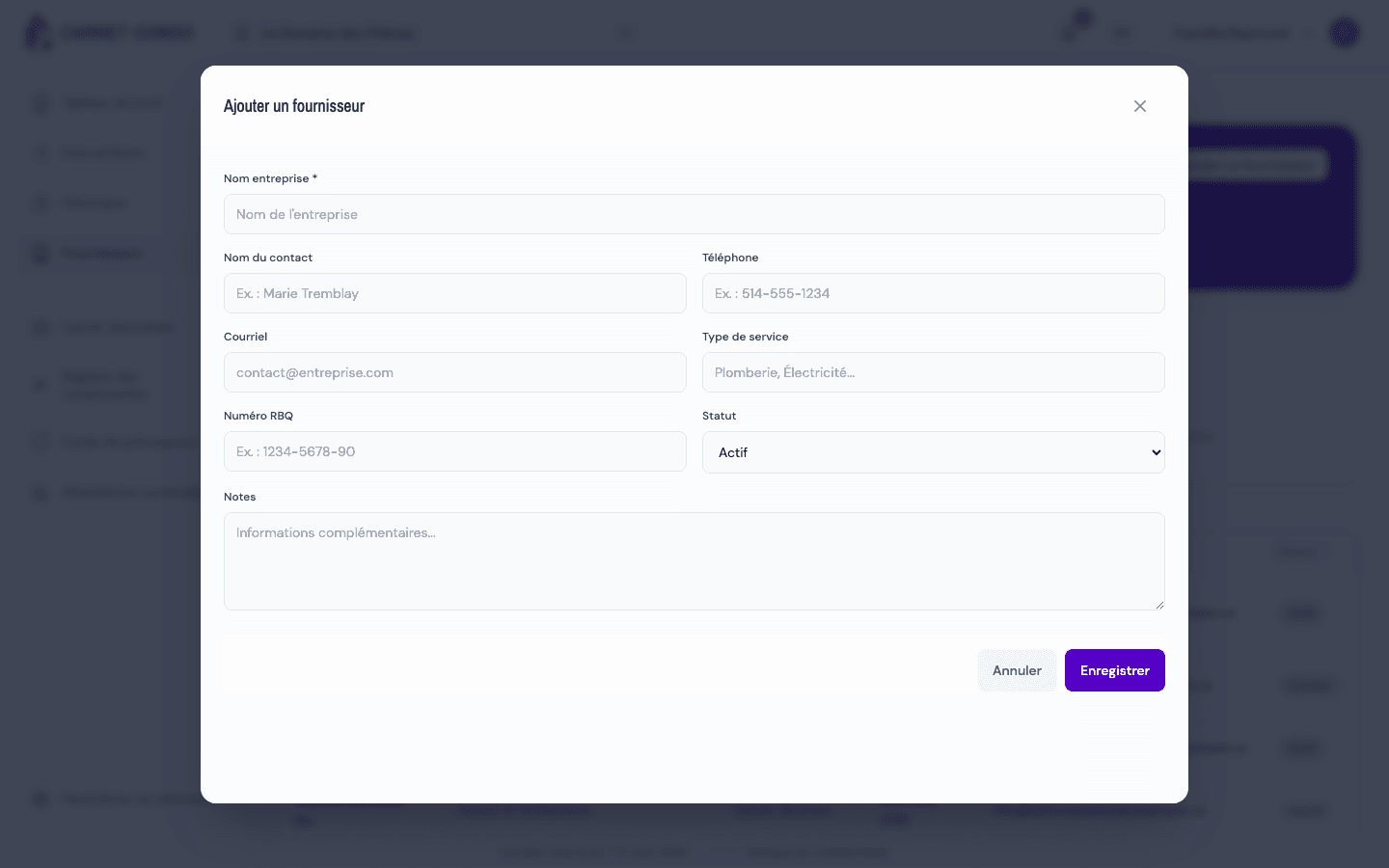
Click "Add a supplier" at the top right.
-
Fill in Company name (required), Contact name, Phone, Email, Service type, RBQ number, Status (Active by default) and Notes.
-
Click "Save". The message "Supplier saved." appears.
Edit
-
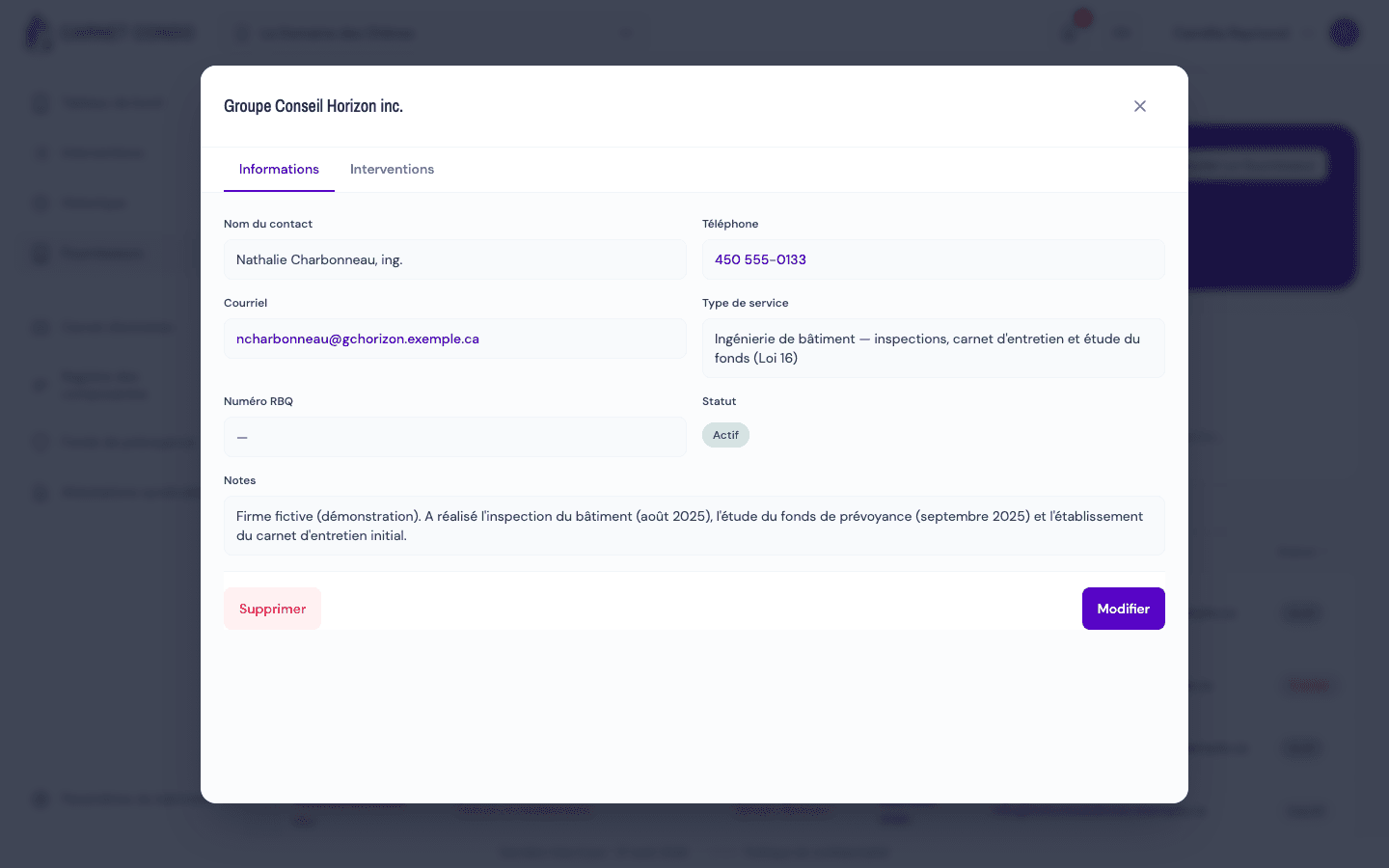
Click a row in the table: the supplier's record opens in read mode, "Information" tab.
-
Click "Edit", adjust the fields, then "Save". "Cancel" returns to read mode without changing anything.
Delete
- In the record, click "Delete".
- Confirm: "Delete the supplier “(name)”?".
RBQ number
The RBQ number identifies a contractor licensed in Quebec; it lets you check that a company is in good standing.
Tips and common mistakes
- Name required: without a company name ("Company name is required."), saving is blocked.
- "Avoid" status: rather than deleting a bad supplier, set it to "Avoid" to keep a record; it stays visible (with that status) when choosing the supplier of a work.
- Deleting is permanent.