
Add an inspection report to a component
Upload inspection reports specific to a component (professional report, study, expert assessment), with the inspection date and a note per file.
- Audience
- Administrator
- Screen
- Component record › Inspections tab
- Verified version
- App 1.0.0
Goal
File the reports that describe a component with that component: roof inspection, balcony assessment, masonry study… You then find them directly in its record.
Audience
Building administrator.
Prerequisites
- The component is in the register (see View a component's record).
Steps
-
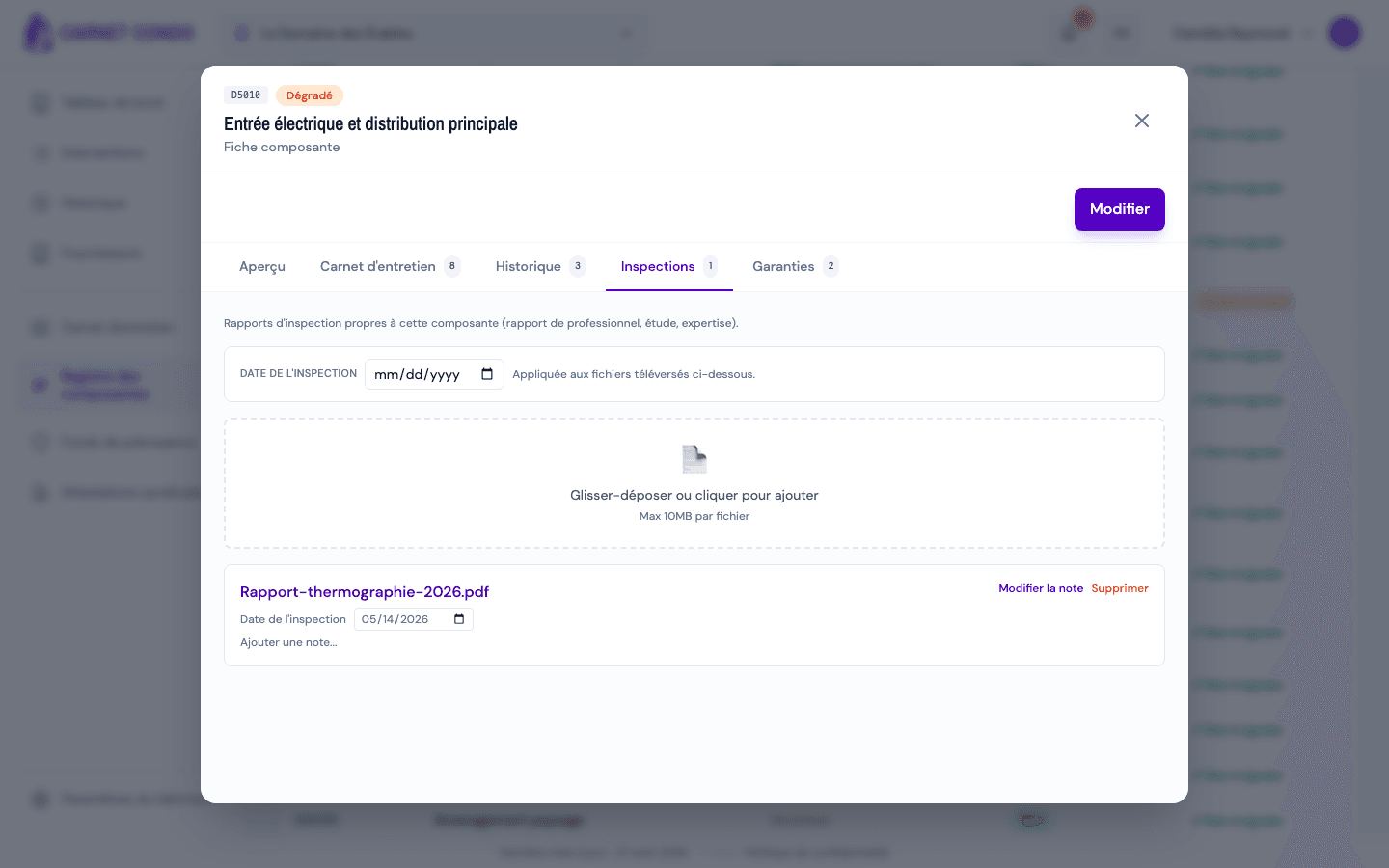
Open Component register, click the component, then the "Inspections" tab.
-
(Optional) Enter the "Inspection date": it is "Applied to the files uploaded below".
-
Drop your files in the "Drag and drop or click to add" area (several files at once; PDF, Word, Excel, text, CSV or images; Max 10MB per file).
-
Each uploaded report is shown with:
- its name, which is the download link;
- its date ("Inspected on (date)" or "Inspection date not set"), editable in place;
- a note: "Add a note..." or "Edit note";
- the "Delete" button, with the confirmation "Delete “(name)”?".
Component inspections or Law 16 documents?
This tab holds reports specific to one component. The building's inspection reports required by Law 16 are uploaded in Syndicate attestations › Documents, where they feed the syndicate's attestation.
Tips and common errors
- File too large: "(name) exceeds the 10MB limit"; reduce or split it.
- Date not saved: "The inspection date could not be saved."; try again.
- No reports: "No inspection report for this component.".
- Counter: the number on the tab shows how many reports there are.
See also
Link a supplier to a work or intervention
Attach a company to an intervention, a routine repair or a major repair, through the Supplier field.
Add a warranty to a component
Record a warranty attached to a component itself (e.g. original manufacturer warranty) with its end date and supporting files; also see warranties from related works.