
Add a warranty to a component
Record a warranty attached to a component itself (e.g. original manufacturer warranty) with its end date and supporting files; also see warranties from related works.
- Audience
- Administrator
- Screen
- Component record › Warranties tab
- Verified version
- App 1.0.0
Goal
Keep track of a warranty attached to the component itself, independent of any maintenance or repair: the original manufacturer warranty of a membrane, an elevator, windows…
Audience
Building administrator.
Prerequisites
- The component is in the register.
Steps
-
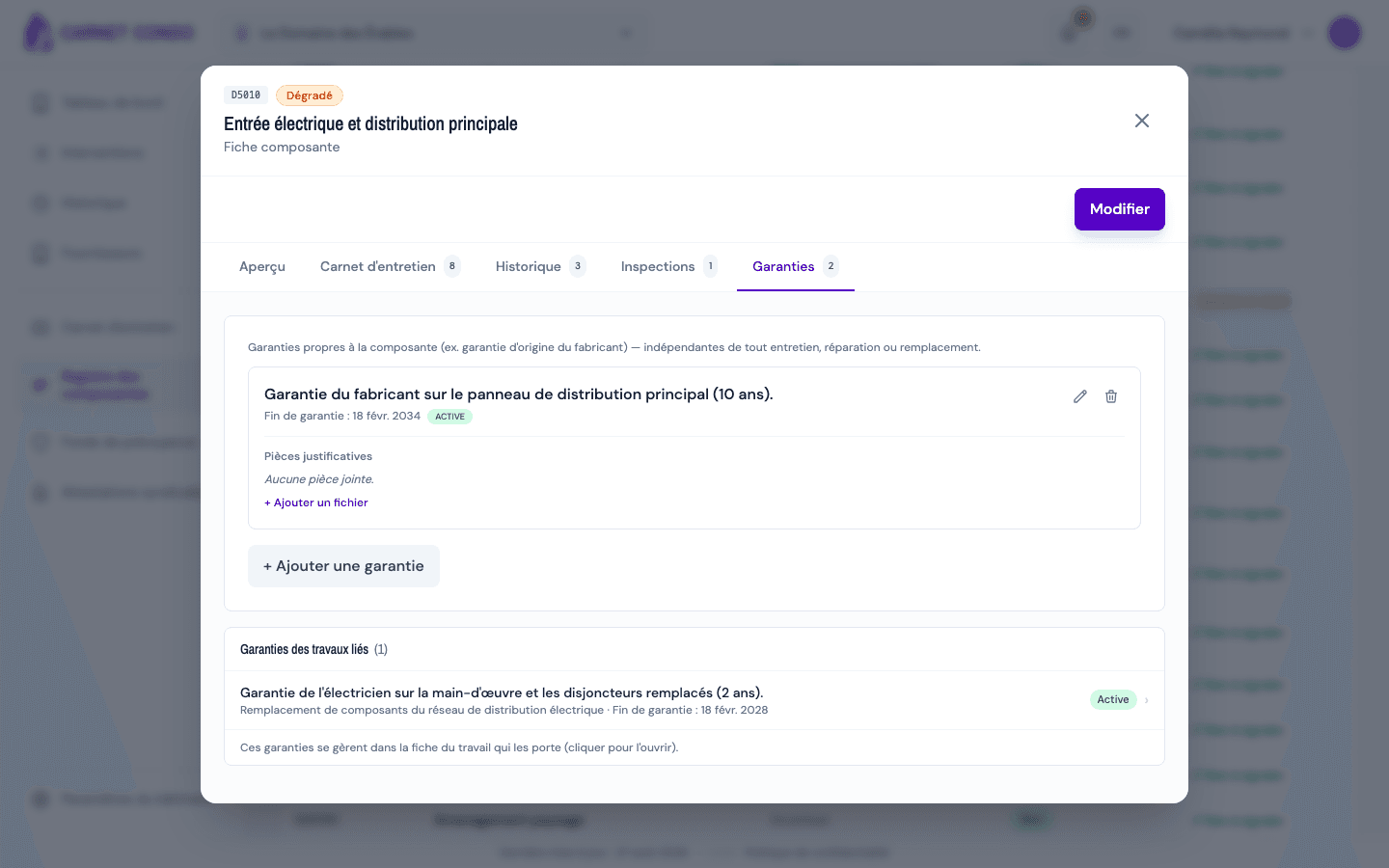
Open Component register, click the component, then the "Warranties" tab.
-
In the top block ("Warranties attached to the component itself…"), click "+ Add a warranty". The "New warranty" form opens.
-
Fill in:
- "Warranty end date" (required);
- "Description" (required), for example "10-year manufacturer warranty — membrane";
- (optional) "Supporting files": click "+ Add a file" to attach the certificate or invoice.
-
Click "Add warranty". It appears with its end date and an "Active" or "Expired" badge.
-
To correct it, click the "Edit warranty" icon; to remove it, "Delete warranty", then confirm "Delete this warranty and all its supporting files?". A single file is removed with "Delete file".
Warranties from related works
The bottom block, "Warranties from related works", shows read-only the warranties recorded on this component's routine and major repairs. They are managed in the record of the work that carries them: click one to open it. The tab's number adds up both blocks.
Tips and common errors
- Required fields: "The warranty end date is required." and "The warranty description is required.".
- Several warranties: a component can carry several (manufacturer, installer…), each with its own files.
- Warranty from a repair: for a warranty obtained during a repair, add it in the repair's record instead (see Add a warranty); it will show up here automatically.